Best viewed on two screens, or side by side
Put the Training app on one side and this walkthrough on the other so you can read a step and do it without flipping back and forth. Two monitors works best. On one screen, snap each window to half: click the Training window and press ⊞ + ←, then this window and press ⊞ + → (on Windows). Training opens in a new tab when you click Open Training above.
How this tour works
Training builds on your organization's real records, so there is no separate demo. This walkthrough opens the live Training app and tells you what each part does. Anything you create here is real, so feel free to make a test module and delete it when you are done.
You need to be signed in to your All In One Nonprofit account as someone who manages your organization. If the page asks you to sign in, sign in and come back. Members do not use this page; they complete training from their own member page, which you will see at the end.
Think of yourself as the training chair. You decide what people need to know, build a short module for it, point it at the right people, and the app tracks completion and hands out certificates for you.
Get your bearings
When Training opens you land on the Dashboard, an At a glance card with your counts. The left-hand menu holds the rest: Modules (the Create a training module form, the Standard training library of ready-made starters, and Your modules), Courses, Groups, People (Who has completed training) and Settings (the Notifications card). The User Guide and the AI Automations Guide are in the same menu.
Do this: Click each menu item once, Modules, Courses, Groups, People and Settings, so you know where each part lives. Modules is where you spend most of your time.
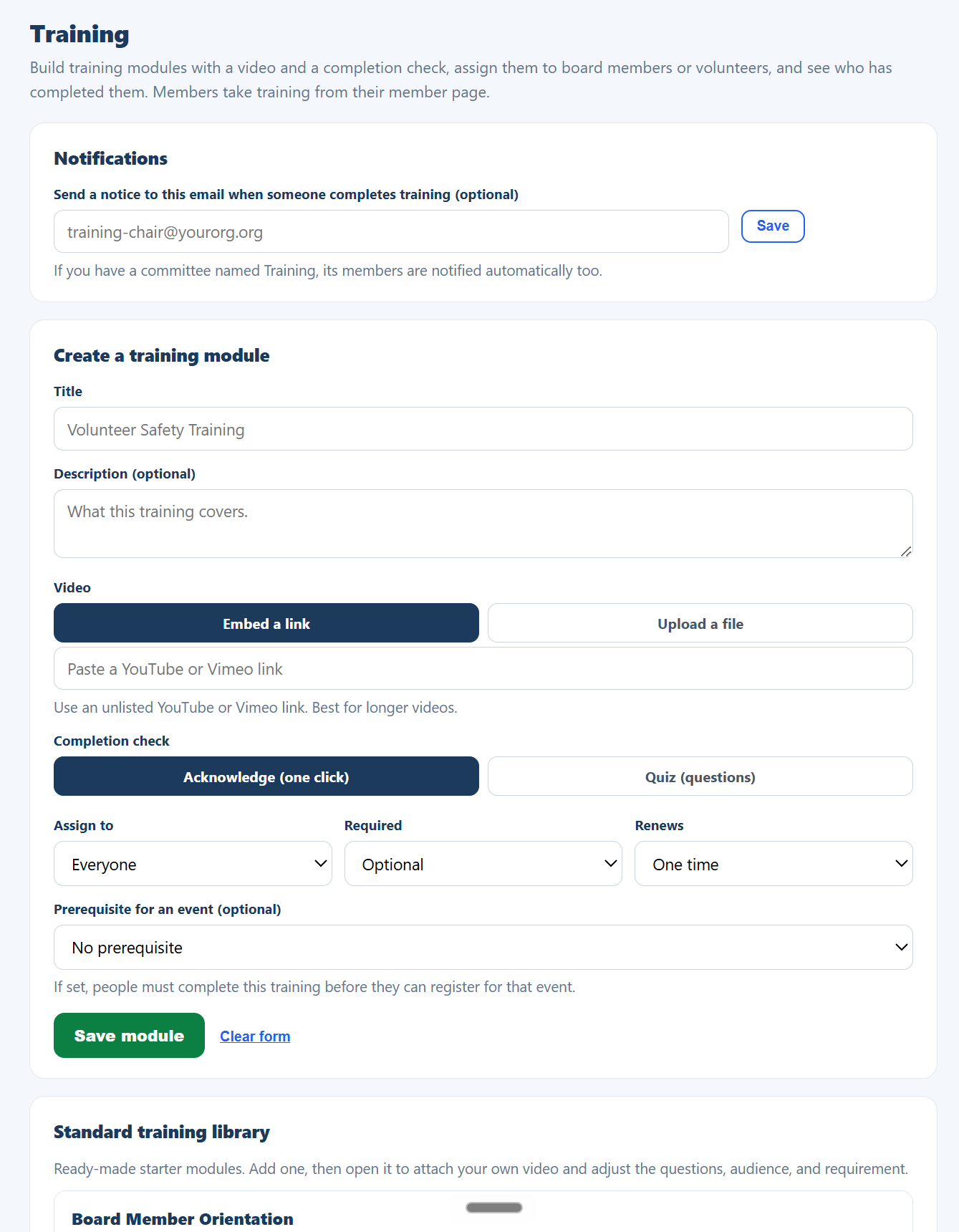
Why it matters: the whole training workflow, build, assign, track, is six menu items, each one screen, so there is nothing to hunt for.
Set a completion notification
Under Settings, the Notifications card lets you enter an email that gets a notice whenever someone completes a training. If you have a committee named Training, its members are notified automatically too.
Do this: Click Settings, type an email like your training chair's address into Notifications and click Save. This is optional, but it is handy for staying on top of completions.
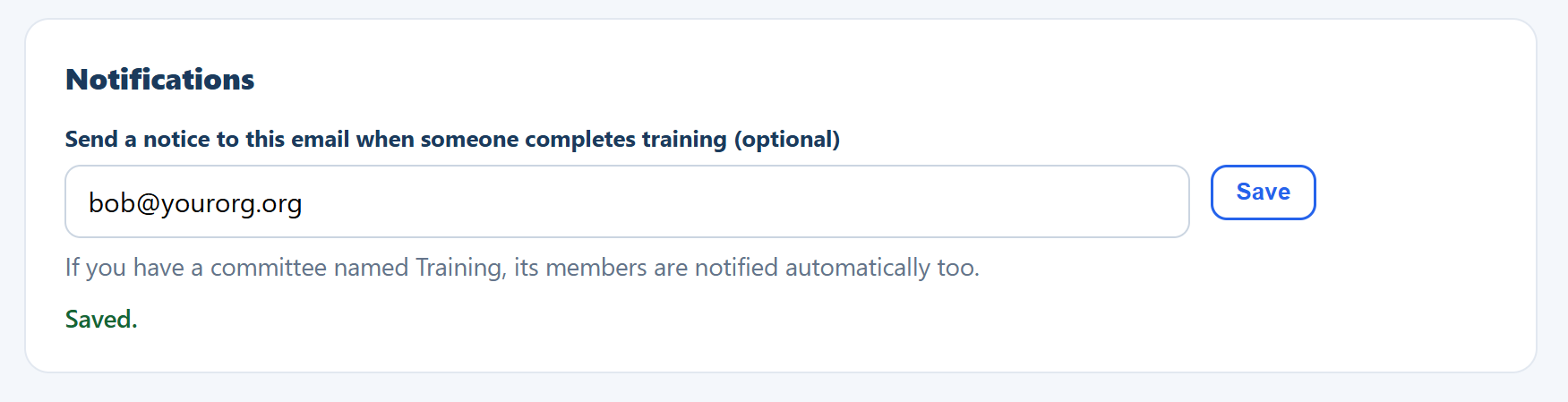
Why it matters: a quiet heads-up when someone finishes keeps you from having to check the list manually.
Start a module with a title and description
Click Modules. In Create a training module, give it a clear title such as "Volunteer Safety Training" and a short description of what it covers. That is all you need to begin.
Do this: Enter a Title and a one-line Description. You will add the lesson and the check in the next two steps.
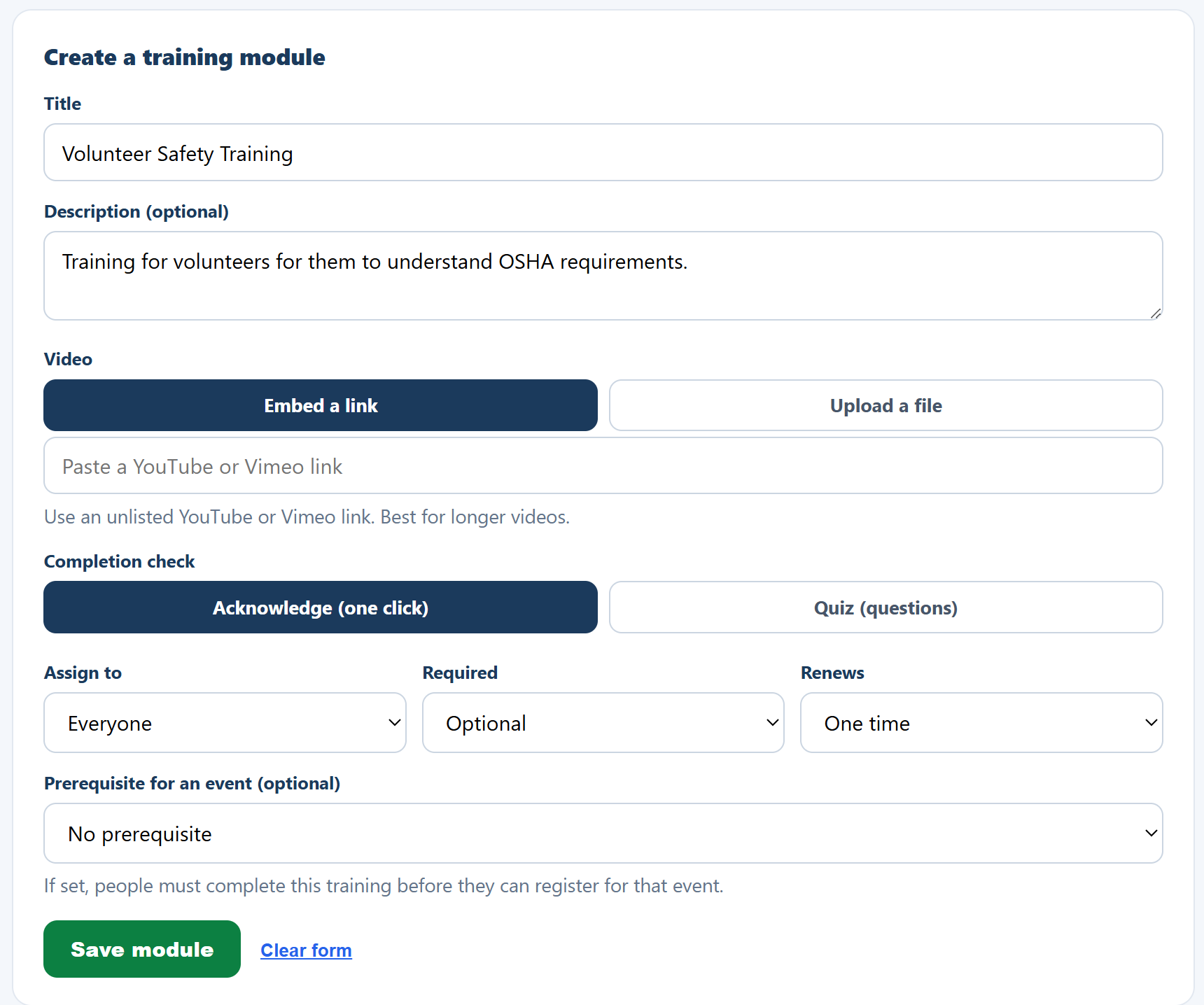
Why it matters: a clear name and purpose set expectations for the people who will take it.
Add the lesson: a link, a file, or written
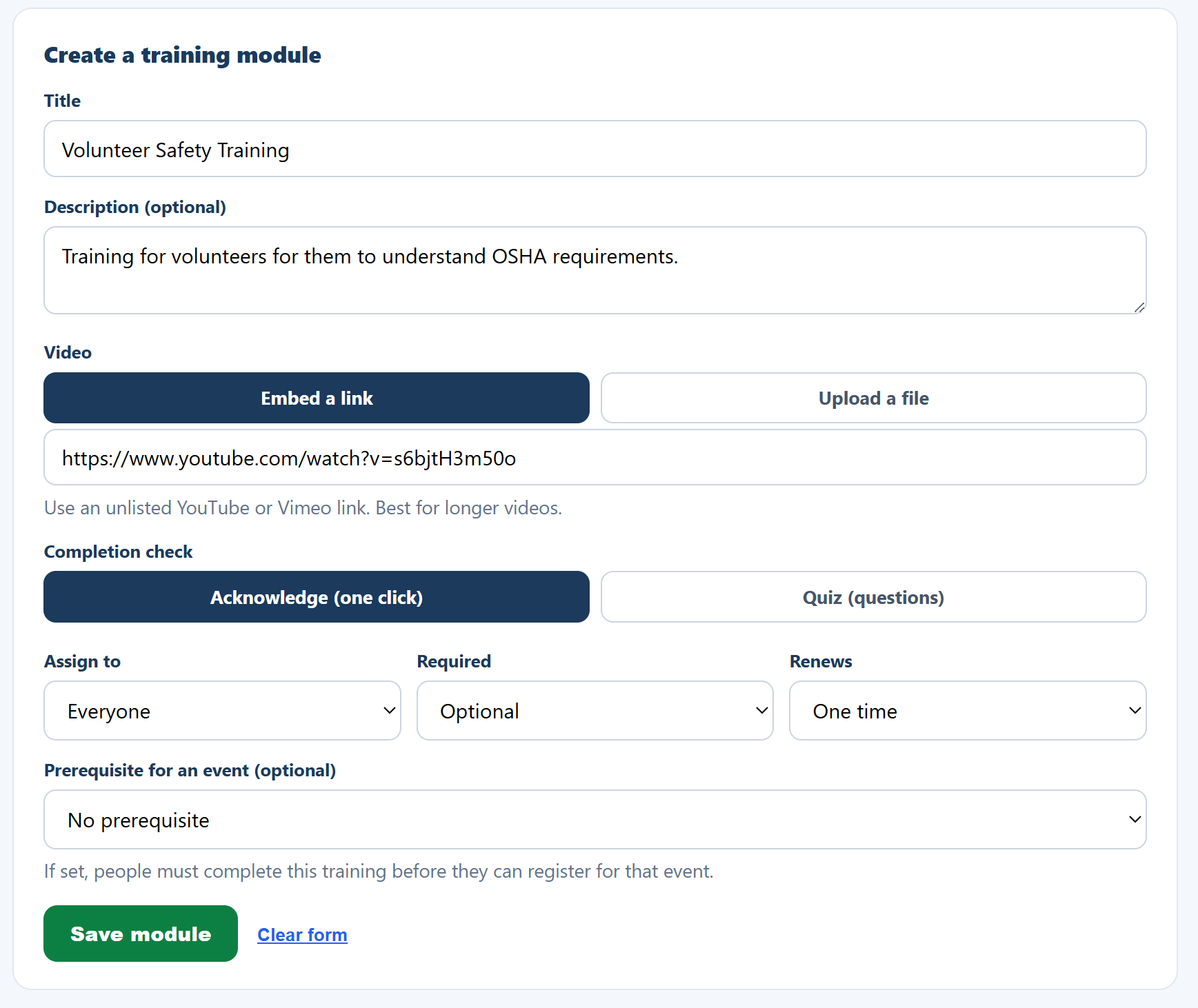
Under Lesson content you choose one of three. Embed a link takes an unlisted YouTube or Vimeo URL and is best for longer videos. Upload a file stores a video privately on All In One Nonprofit, up to 100 MB. Write a lesson needs no video at all: you type the lesson and it is shown inside the member portal, which suits a short policy, a checklist or a code of conduct where a video would be more effort than the content deserves.
Do this: Pick Embed a link and paste a video URL, pick Upload a file and choose a file, or pick Write a lesson and type a few paragraphs. For an uploaded file, you save the module first and the file uploads after.
A written lesson keeps headings, bold, lists, links, tables and images. Anything that could run code is removed when you save, so pasting formatted text from elsewhere is safe. The reader confirms “I have read the entire lesson” rather than being asked to watch a video that is not there, and reaching the end of a long lesson ticks that box the same way finishing a video does.
Why it matters: a short video carries the lesson well, and the app can detect when the viewer reaches the end so completion is honest. But not every policy is worth filming, and a written lesson means a module can exist today instead of waiting for somebody to record something.
Choose a completion check
Under Completion check, decide how someone proves they finished. Acknowledge is a single confirmation click. Quiz lets you add questions and a passing score. You can even click AI: draft questions from the title to generate a starter quiz, then edit it.
Do this: Try Quiz, click AI: draft questions from the title, and watch a few questions appear. Mark the correct answer for each and set a passing score, or switch back to Acknowledge for a simple sign-off.
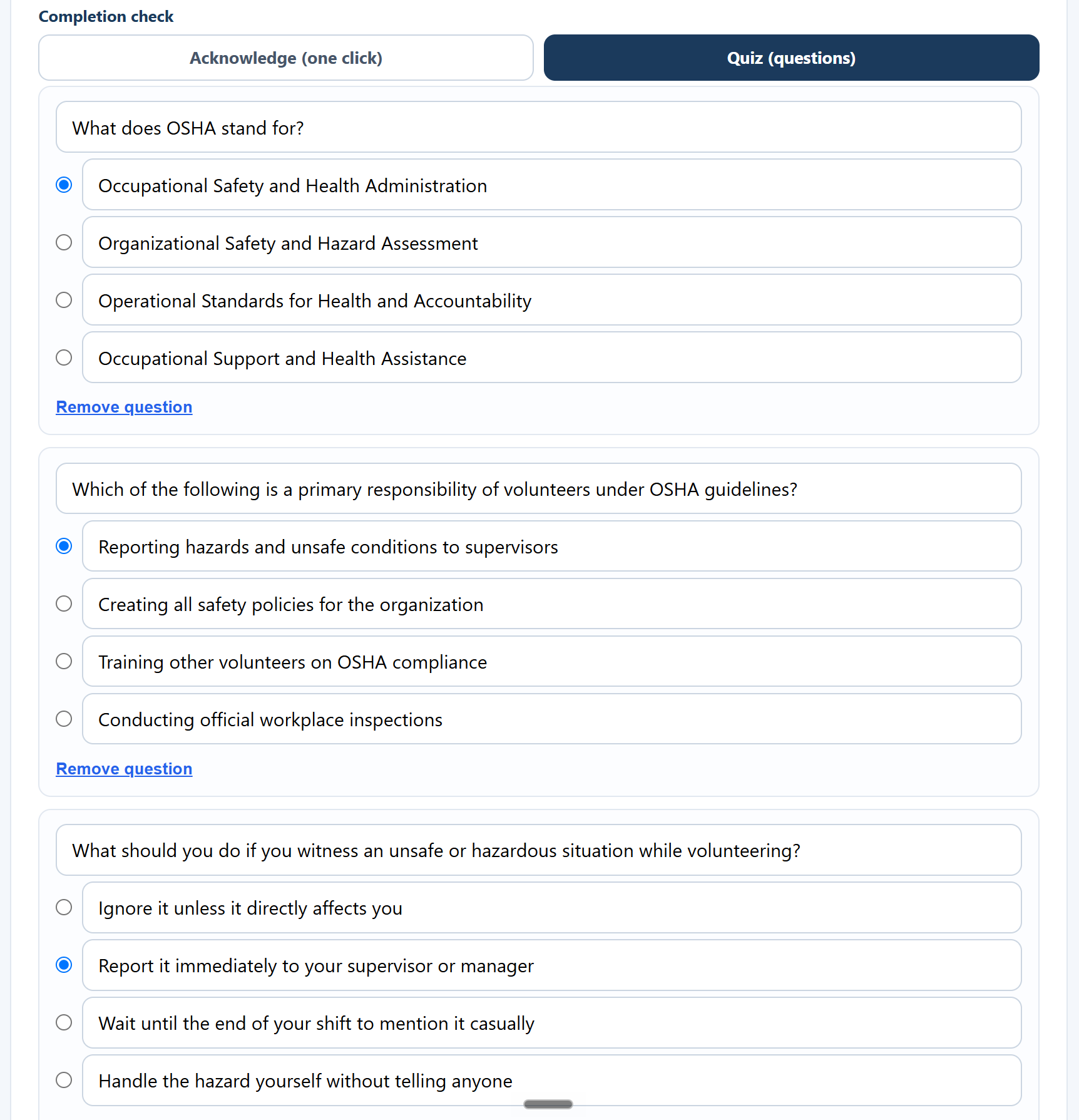
Why it matters: a quick check turns "I watched it" into real evidence that the person understood the material.
Assign it and save
At the bottom of the form, set Assign to (Everyone, Board members, or Volunteers), whether it is Required, and whether it Renews annually. You can also make it a prerequisite for an event, so people must finish it before they can register.
Do this: Set Assign to, choose Required or Optional, pick a renewal option, then click Save module. It appears under Your modules.
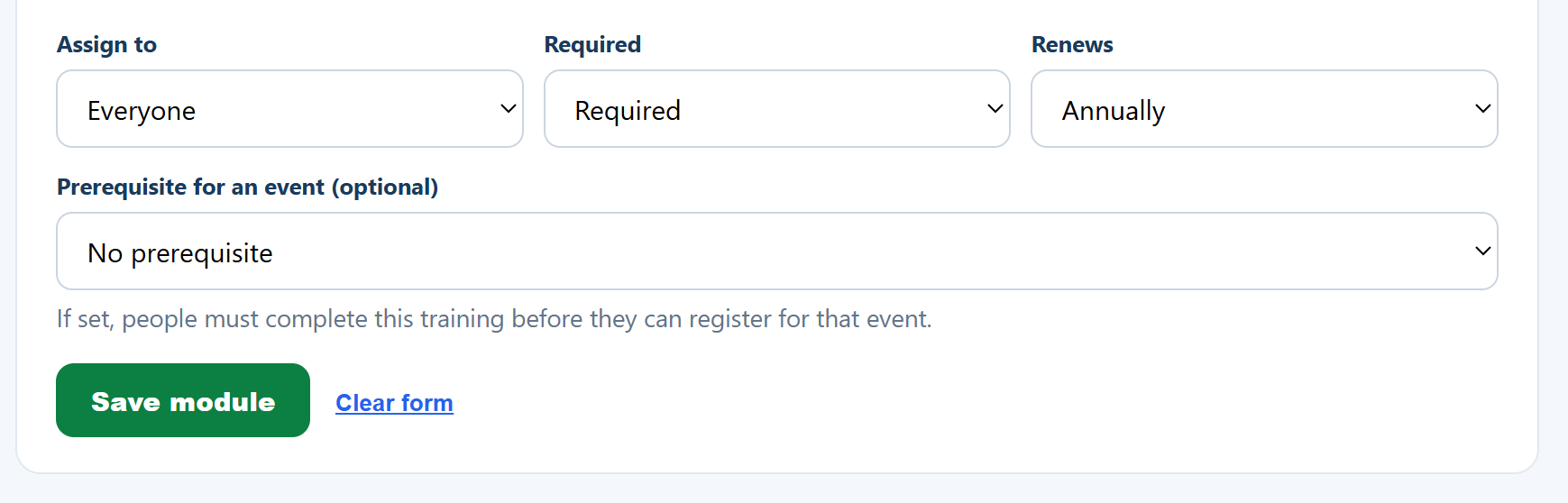
Why it matters: assigning to the right group and marking required items means the right people get the right training, and annual renewal keeps it current.
Start from the standard library
Do not want to build from scratch? The Standard training library, below the form on Modules, has ready-made starters such as Board Member Orientation, Conflict of Interest Basics, Governance 101, Volunteer Safety, Confidentiality, and Code of Conduct, each with sensible questions already written.
Do this: In the library, click Add to my training on a starter. Then open it from Your modules to attach your own video and adjust the audience and requirement.
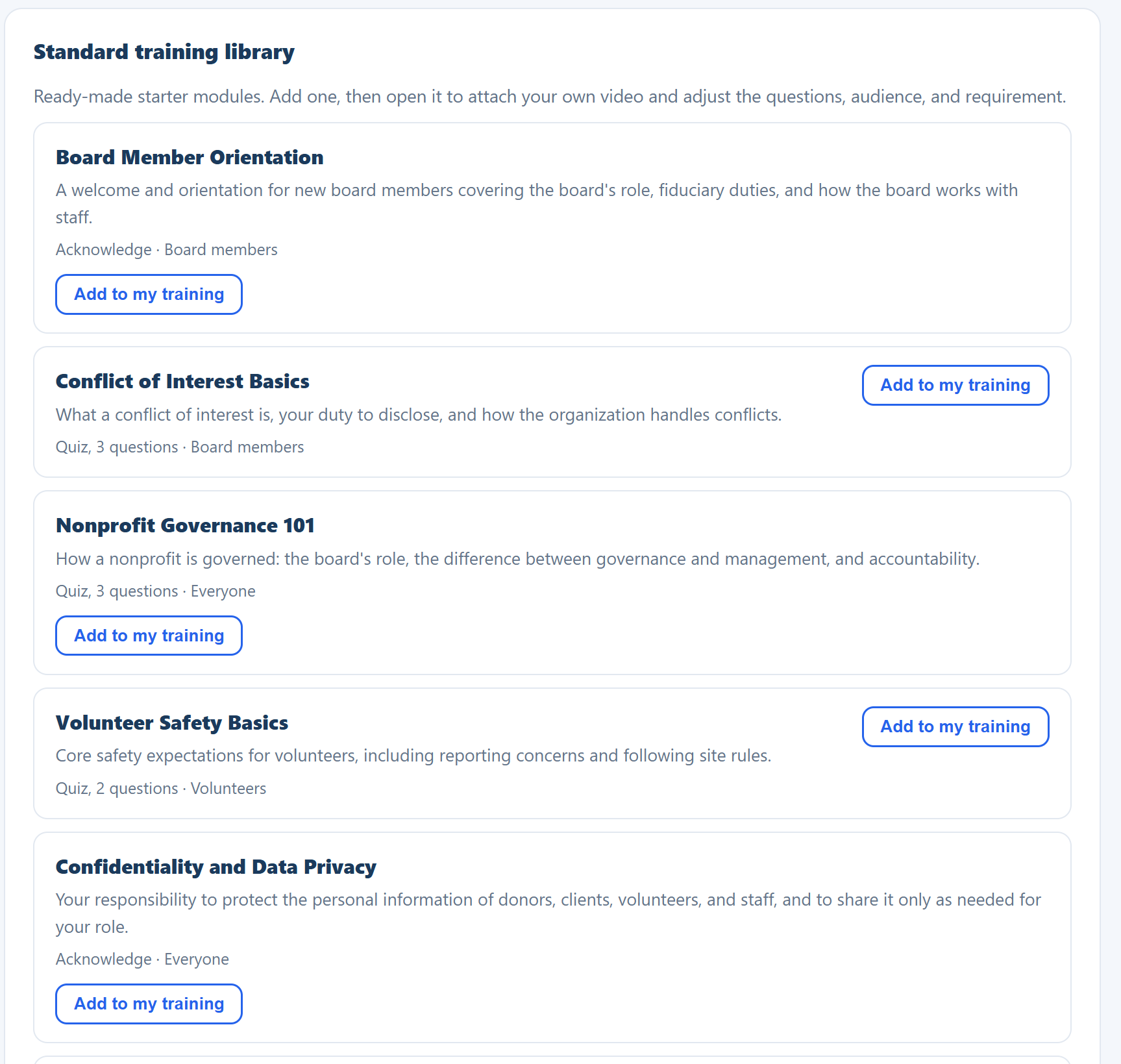
Why it matters: the starters get a solid program in place in minutes, so good training is not blocked on writing it yourself.
Manage your modules
Each module under Your modules shows its audience, its check, whether it is required, and how many people have completed it. You can Edit it, view Completions, or Delete it.
Do this: Click Completions on a module to expand who has finished and when, with quiz scores where relevant. Use Edit to change anything.
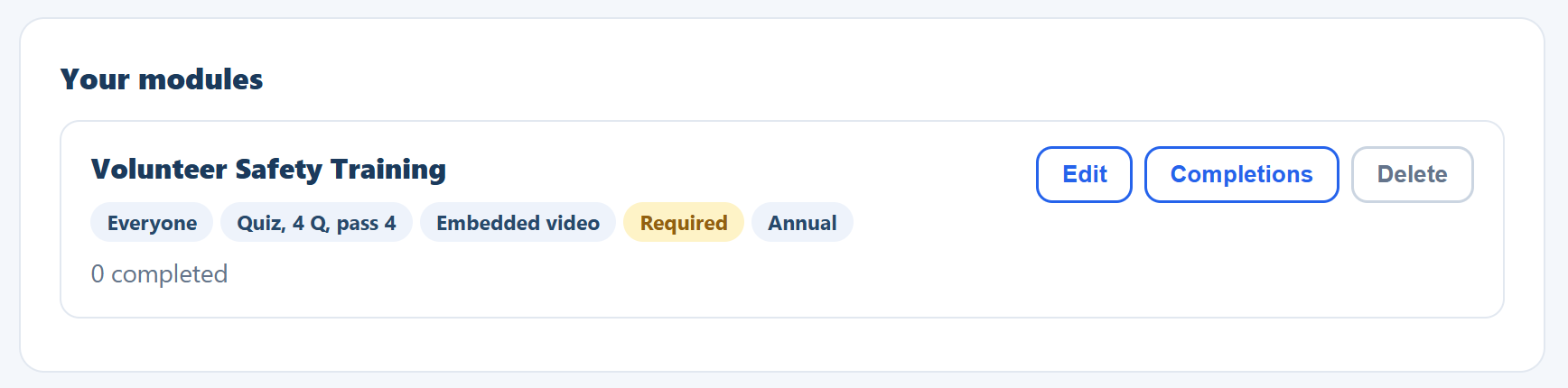
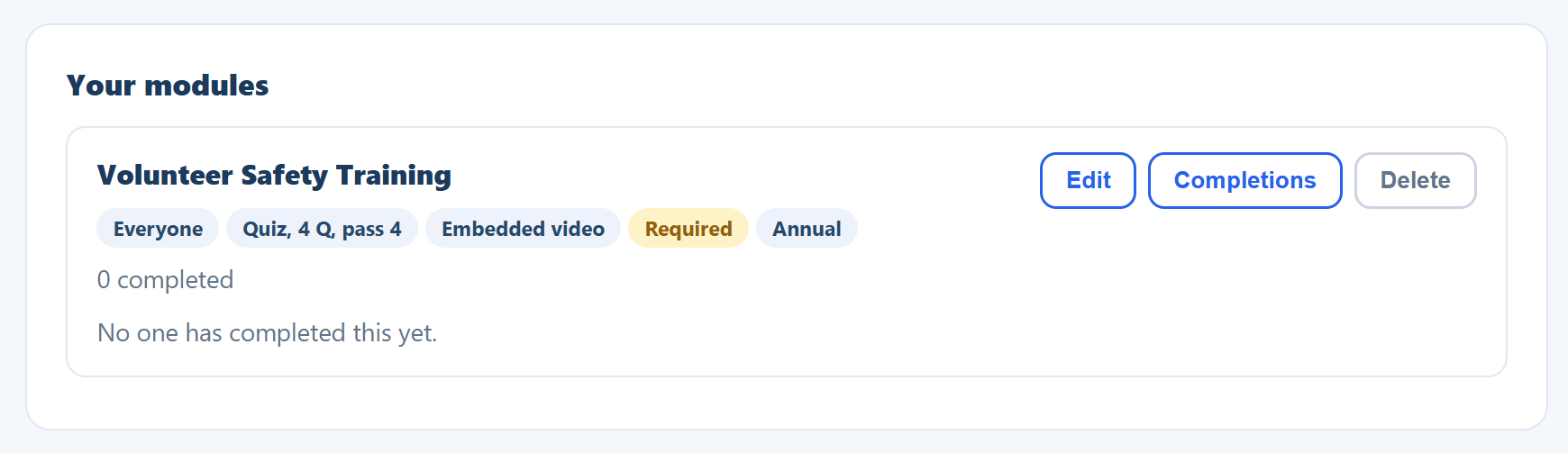
Why it matters: training is not set-and-forget. Easy editing and a completion list let you keep the program accurate and current.
See who has completed training
Under People, the Who has completed training card gives you a per-person view, pulled from your contacts, committees, and board and volunteer rosters. It shows each person and exactly which required items they still owe.
Do this: Click People, then Load training status, and read down the list to spot anyone with outstanding required training.
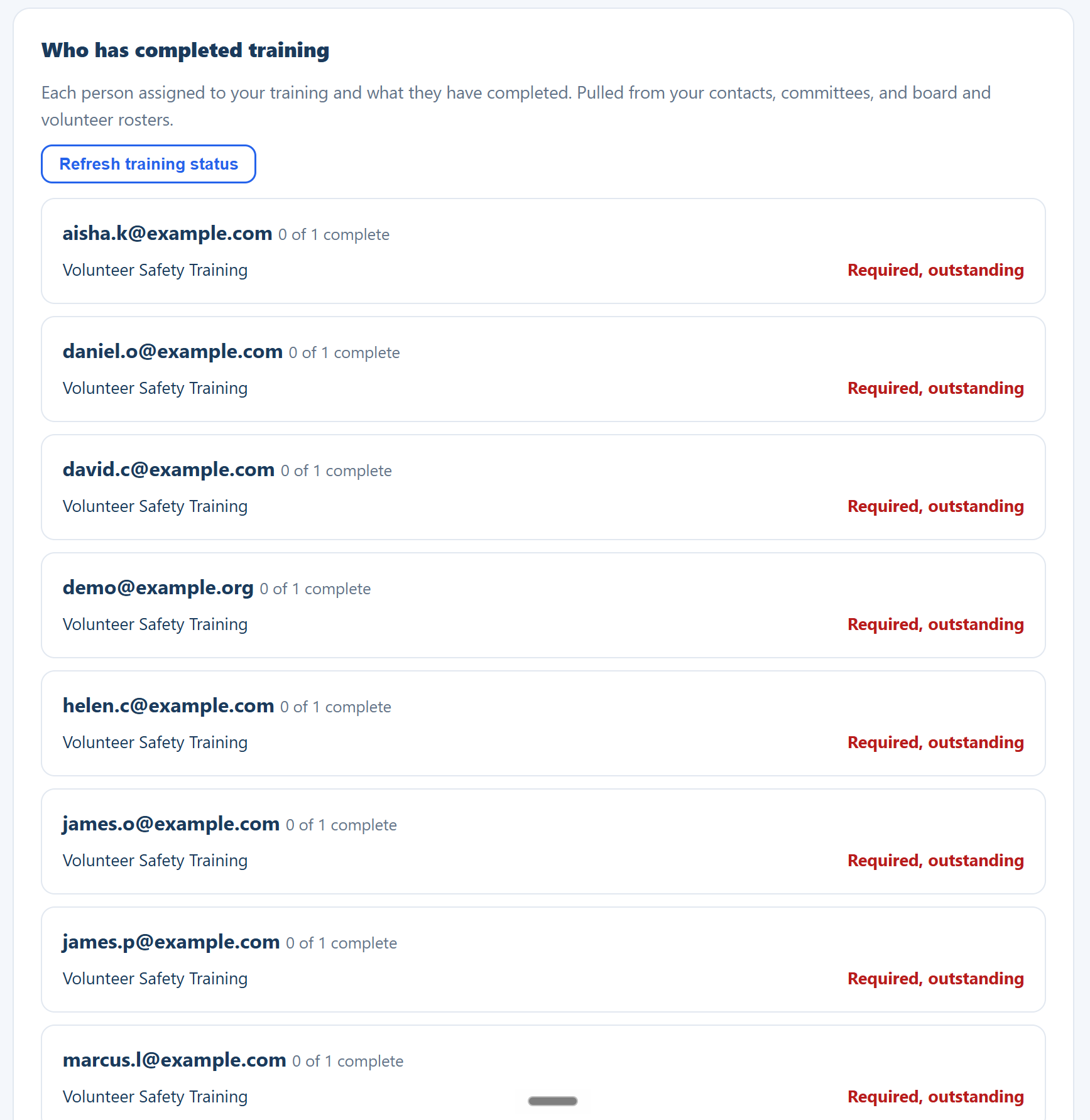
Why it matters: a single roll-up of who is and is not current is what you need to chase the stragglers and stay audit-ready.
Put your modules in order as a course
A module on its own is one thing to watch. A course is several of them in an order that means something: lesson one before lesson two, and nobody in lesson four before session four has happened. Every lesson is a module you already built, so nothing is written twice and a correction reaches every course that teaches it.
Do this: Click Courses, then + New course. Give it a title. Add modules as lessons and use Up and Down to put them in order. For each lesson choose when it opens: right away, with a given cohort session, or on a date. Tick Required for the ones nobody may skip. Set the completion rule, add the name and title that sign the certificate, choose a cohort under Run it as this cohort if there is one, and click Save course. Once a module is a lesson in a course you cannot delete that module until you take it out of the course, so a course is never left pointing at a lesson that no longer opens. Starting from nothing? Type the title first and press AI: draft an outline from the title, then create the lessons it proposes and add each video afterward.
Why it matters: the progress grid answers the question a board actually asks, which is not who watched the video but who has finished the orientation, and the certificate at the end is issued on your own letterhead with your chair's name on it, filed to the Document Library without anybody typing it.
Ask for work, and mark it
Watching a video proves attendance. Asking somebody to write two paragraphs proves they understood it. A lesson can carry an assignment, and only an accepted one counts toward finishing the course, because the point of a review step is that somebody has to say the work is good enough.
Do this: Open a course, click Assignments, then + Add an assignment. Pick the lesson, give it a title, and write what you are asking for in plain words. Choose whether you want a written answer, a file, or both. Build the rubric: one line per thing you are marking, with the score it is out of, and a pass mark if you want one. Save it. When work arrives, click Submissions, read it, put a score against each rubric line, write your feedback, and press Accept it or Send it back. Then open Gradebook and press Export CSV.
Why it matters: the learner is told either way, within seconds, by email and on their phone, and a returned assignment comes back with the reason attached. Silence after handing work in is the complaint every course gets, and this is the part that removes it.
Run a cohort or a mastermind from the Groups tab
Groups is its own item in the left-hand menu. A cohort is instructor-led with a fixed curriculum and everyone finishes together; a mastermind is peer-led with an open agenda, where members bring their own challenges and hold each other accountable. Both get a roster, a session calendar with join links, an attendance grid and a discussion thread.
Do this: Click Groups, then + New group. Pick the type, give it a name, enter the facilitator, set the first session date, the time, how often it meets and how many sessions, choose your video link (your connected Zoom or Google account, or a link you paste), tick the people for the roster, and click Save group. Open the group to see its sessions on the calendar, the attendance grid, the thread and the roster.
Why it matters: every session becomes an event with a join link, members see it on their member page with an RSVP, reminders go out a day and an hour ahead, and attendance fills in afterward, so running a six-week orientation or a monthly peer group is one form, not six calendar entries and a spreadsheet. Every group email carries a calendar file, so a member adds the session to their own calendar in one click, and the reminder the day before updates that same entry instead of adding a second one. The sessions also show on your organization's calendar subscription at their real time. If you tick the box to email the roster, the page tells you how many people were emailed and says so plainly if any failed.
How members take it
Members do not use this admin page. They open their own member page, where assigned training appears with required items flagged. They watch the video, complete the check, and download a Certificate of Completion. If they are enrolled in a course, a My courses card shows a progress bar, a Continue button that opens the next lesson they can take, what is still locked and why, and their course certificate once they have finished. If they are on a group roster, a My groups card shows the next session with its join link, their attendance, the roster and the thread. Their result flows straight back to the completion records you just saw, and feeds the Compliance Copilot.
Do this: Open the member portal walkthrough to see the experience from the member's side.
Why it matters: a smooth member experience means people actually finish, and you get clean records without chasing paper.
That is a complete training program
You now know how to build a module with a video and a check, assign it to the right people, start from the library, and track completion across your whole roster, all in one place. Build a real one whenever you are ready.