Best viewed on two screens, or side by side
Put your member page on one side and this walkthrough on the other so you can read a step and do it without flipping back and forth. Two monitors works best. On one screen, snap each window to half: click the portal window and press ⊞ + ←, then this window and press ⊞ + → (on Windows). The portal opens in a new tab when you click Open the member portal above.
How this tour works
The member portal shows your real information for your organization, so there is no separate demo. This walkthrough points you at the live page and explains each part. Your page only ever shows what belongs to you; you cannot see other members' tasks, and they cannot see yours.
You do not need a password. Most members arrive by clicking a one-time sign-in link their organization emails them. You can also open the portal directly and ask for a fresh link, as long as your email is the one your organization has on file.
This is your home base as a member. Whether you sit on the board or volunteer at events, everything your organization needs from you, and everything it has shared with you, lives on this one page.
Sign in with a one-time link
There is no password to remember. When you open the portal, enter the email address your organization has on file and request a sign-in link. We email you a link that works once and expires in 30 minutes. Click it and you are in.
Do this: On the portal, type your email and click Email me a sign-in link. Open the email and click the link. If you arrived from a link your organization already sent you, you may be signed in already.
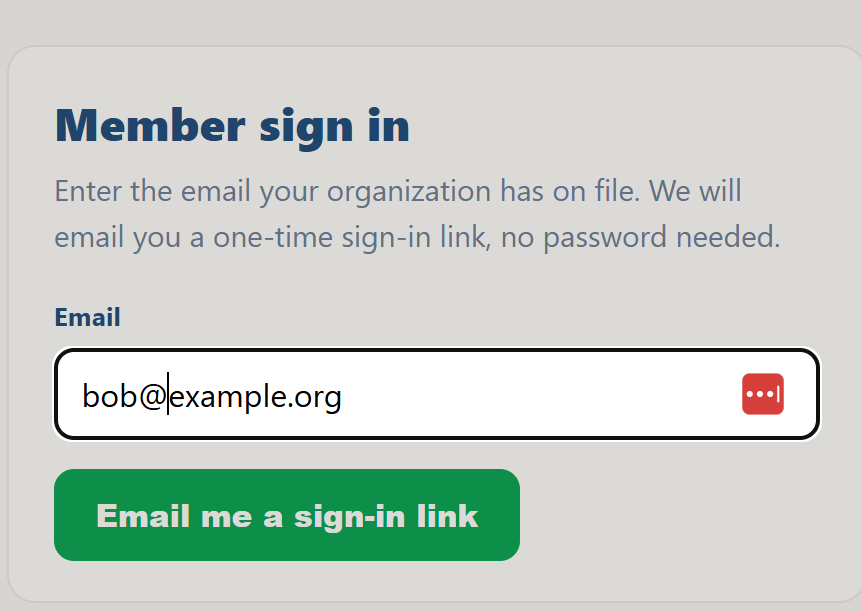
Why it matters: passwordless sign-in means one less thing to forget, and the one-time link keeps your access secure.
See what your organization needs from you
Once you are in, your page opens to a clear summary for your organization, with a card for each kind of task. If you belong to more than one organization, a selector at the top lets you switch between them.
Do this: Read down the cards: To sign, My assignments, Events, Training, Documents, and, for board members, Board votes and Board channel, plus Strategic progress.
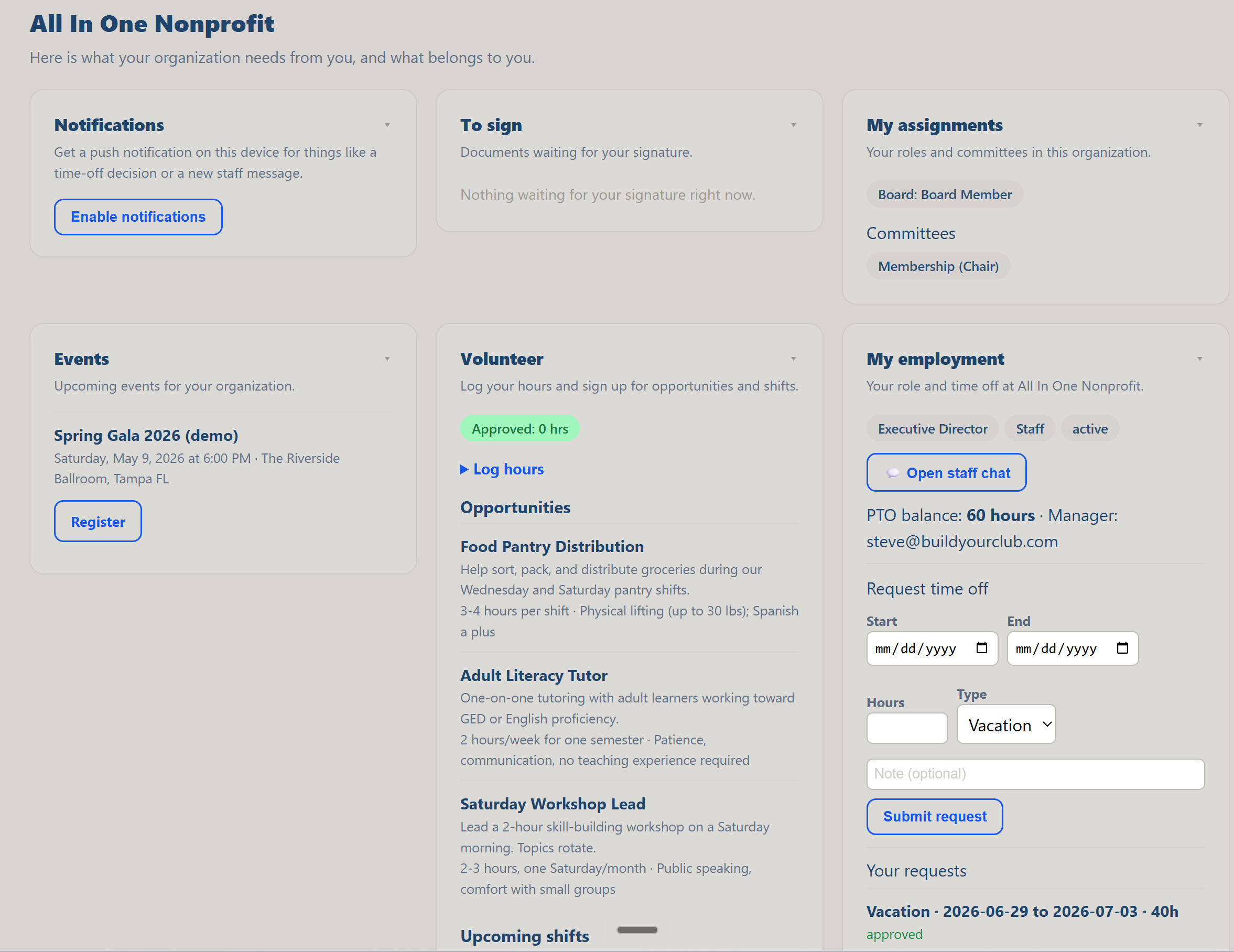
Why it matters: one organized page means you never have to dig through email to find out what is expected of you.
Sign any documents waiting for you
The To sign card lists documents that need your signature, such as a conflict-of-interest disclosure, a policy acknowledgment, a role agreement, or a volunteer waiver. You sign right from here.
Do this: If anything is listed, click Review and sign, read the document, and sign by typing or drawing your name behind the consent checkbox. The signed copy is recorded for your organization automatically.
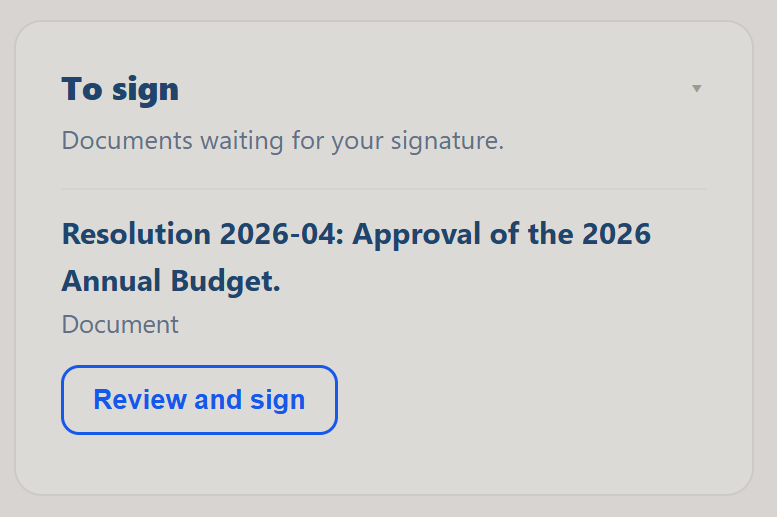
Why it matters: these signatures keep your organization in good governance, and doing it here takes a minute instead of a round of paper and email.
Check your roles and committees
The My assignments card shows the roles you hold and the committees you serve on in this organization, so it is always clear where you fit.
Do this: Look at My assignments to confirm your roles and committees. If something looks wrong, let your organization know so they can update your record.
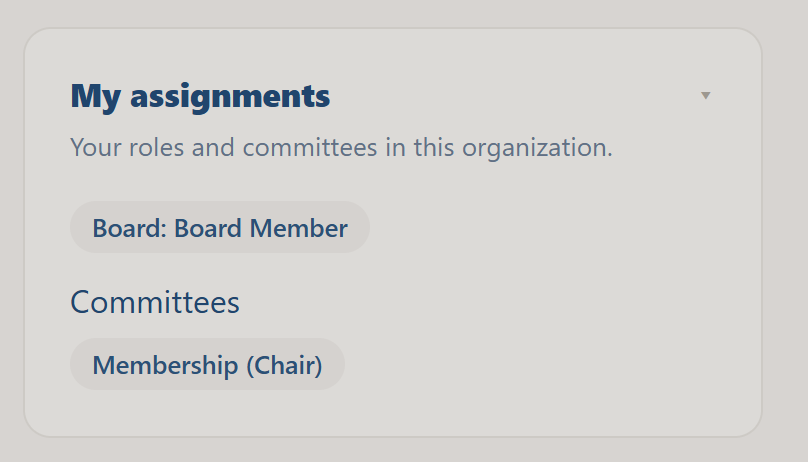
Why it matters: knowing your role and committees keeps you and the organization aligned on what you are responsible for.
Register for upcoming events
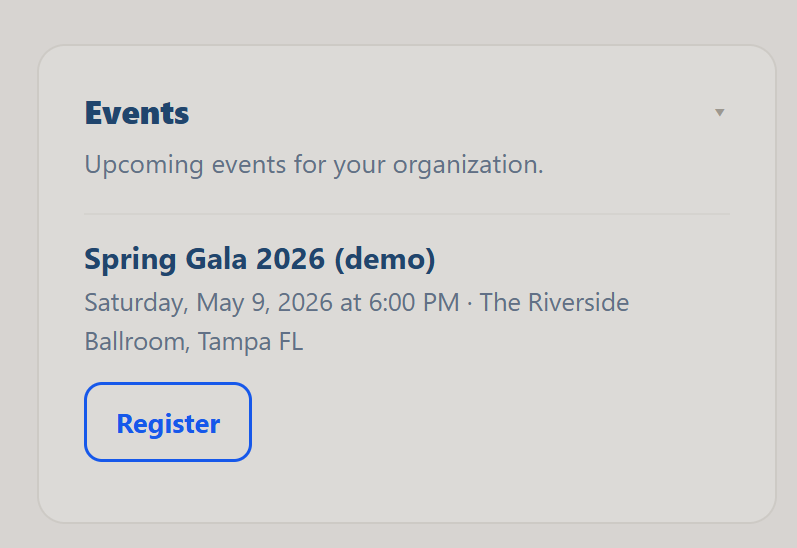
The Events card lists your organization's upcoming events. Events you have already registered for are marked, and you can open any event to register or view the details.
Do this: Find an upcoming event and click Register, or View if you are already signed up. The event page opens in a new tab.
Why it matters: seeing every event in one place, with your registration status, makes it easy to show up where you are needed.
Complete your training
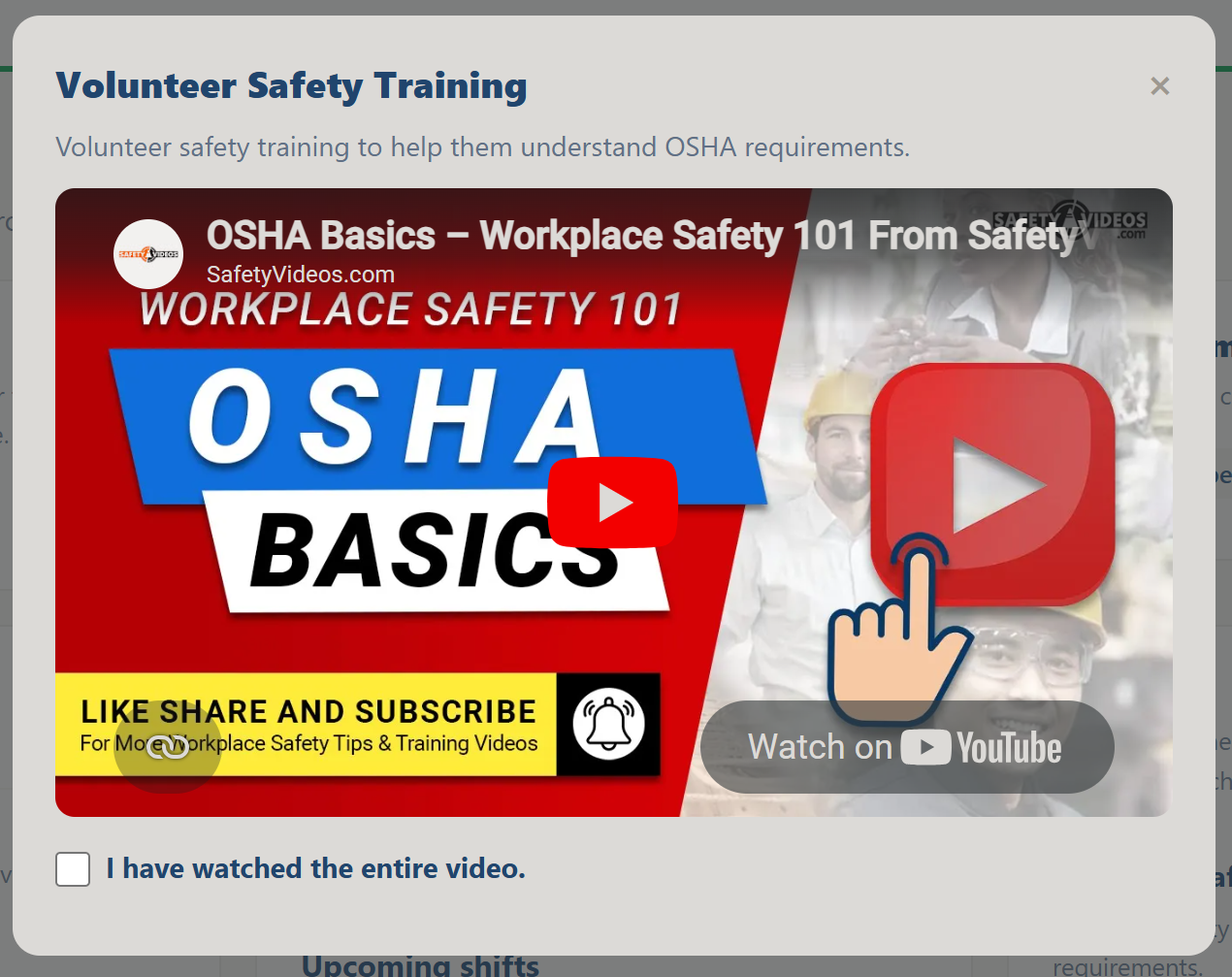
The Training card lists training assigned to you, with required items flagged. Each module has a short video and a quick check, either a one-click confirmation or a few questions. When you finish, you get a confirmation by email and a certificate you can download.
Do this: Open a training module, watch the video, then complete the check (confirm you watched it, or answer the questions). Pass it and download your Certificate of Completion.
Why it matters: training keeps you ready for your role, and the certificate is your proof that you completed it.
Read the documents shared with you
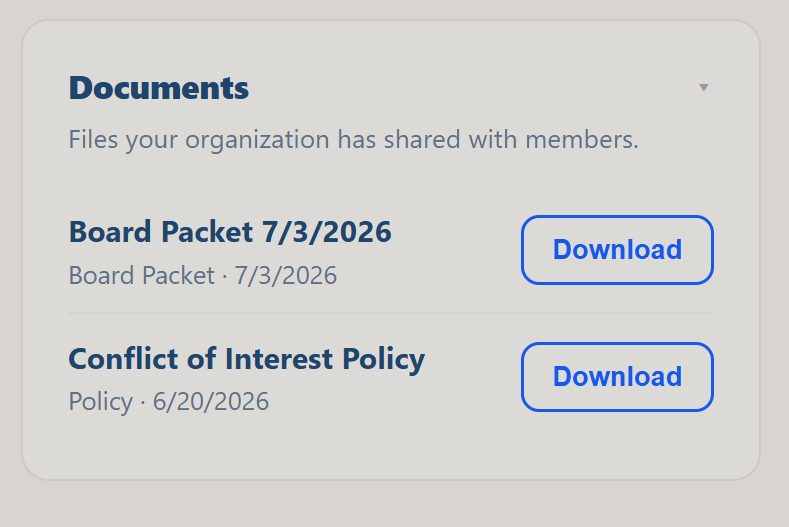
The Documents card holds files your organization has chosen to share with members, such as a board handbook, policies, or meeting materials. They are private to members; nothing is public.
Do this: Open the Documents card and download anything shared with you.
Why it matters: the materials you need are right here, not buried in someone's inbox, so you can prepare with confidence.
Vote on board motions (board members)
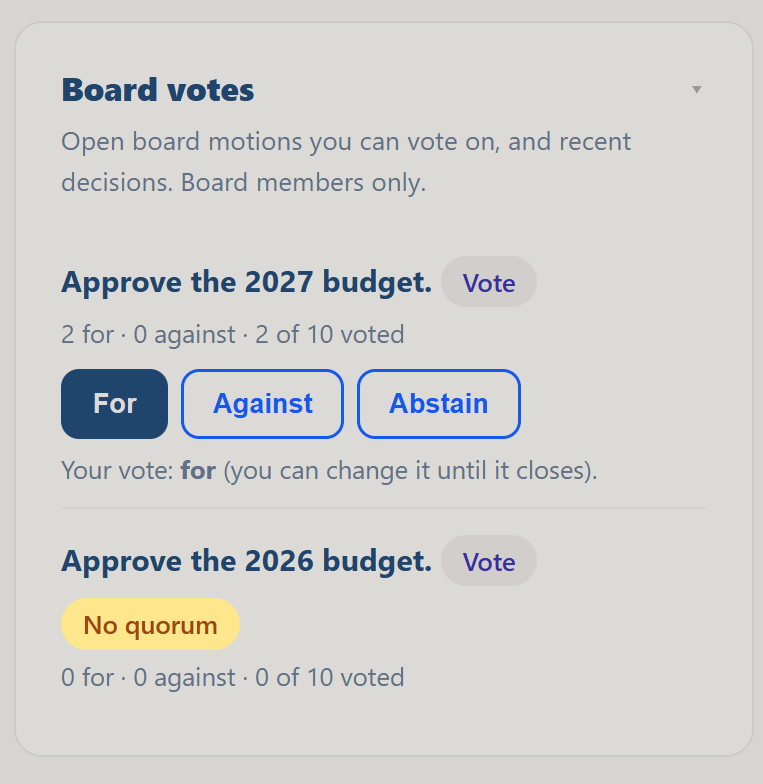
If you are on the board, the Board votes card shows open motions you can act on between meetings, along with the running tally and recent decisions. You vote for, against, or abstain on your own time, and you can change your vote until the motion closes.
Do this: If a motion is open, read it and click For, Against, or Abstain. Watch the tally update.
Why it matters: async voting lets the board make documented, quorum-checked decisions without waiting for the next meeting.
Talk with the board in the Board channel
Board members also get a private Board channel: a simple chat for board-only conversation between meetings, with who is here now and recent message history. It is limited to people on your board roster.
Do this: Open the Board channel card and post a message. Only fellow board members of your organization can see it.
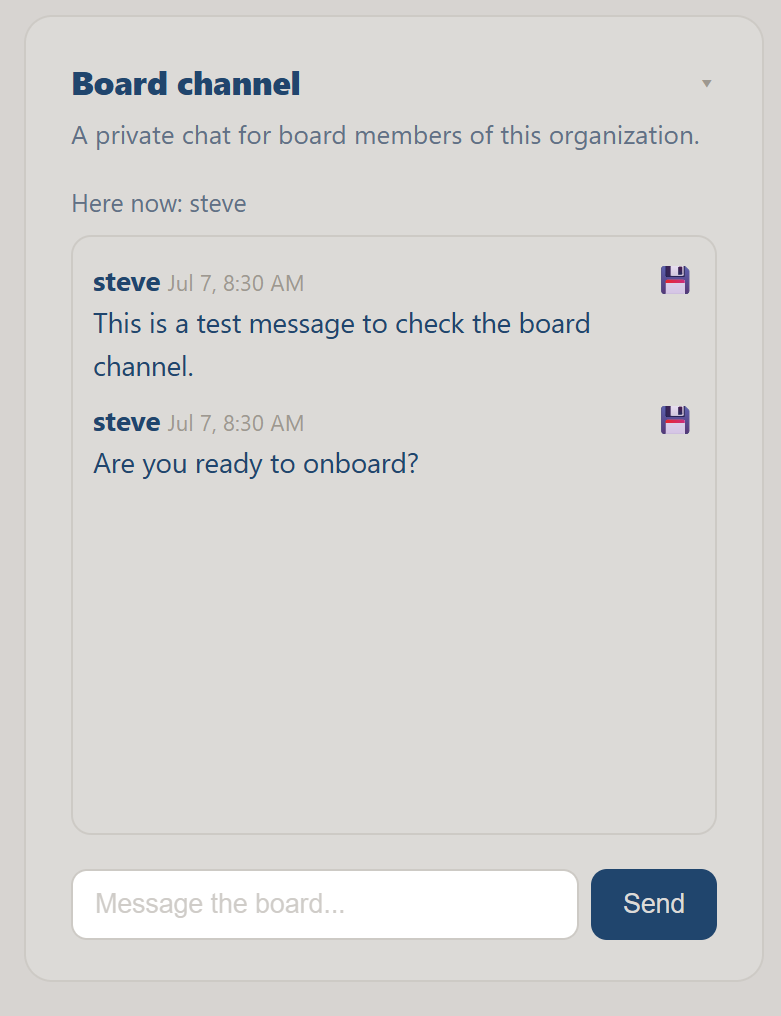
Why it matters: keeping board discussion in one secure place is easier to follow than scattered personal email threads.
Follow the strategic plan
The Strategic progress card gives you a read-only view of how your organization is tracking against its goals, with each goal marked on track, at risk, or behind, and the measures behind it.
Do this: Open Strategic progress and review the goals and their status.
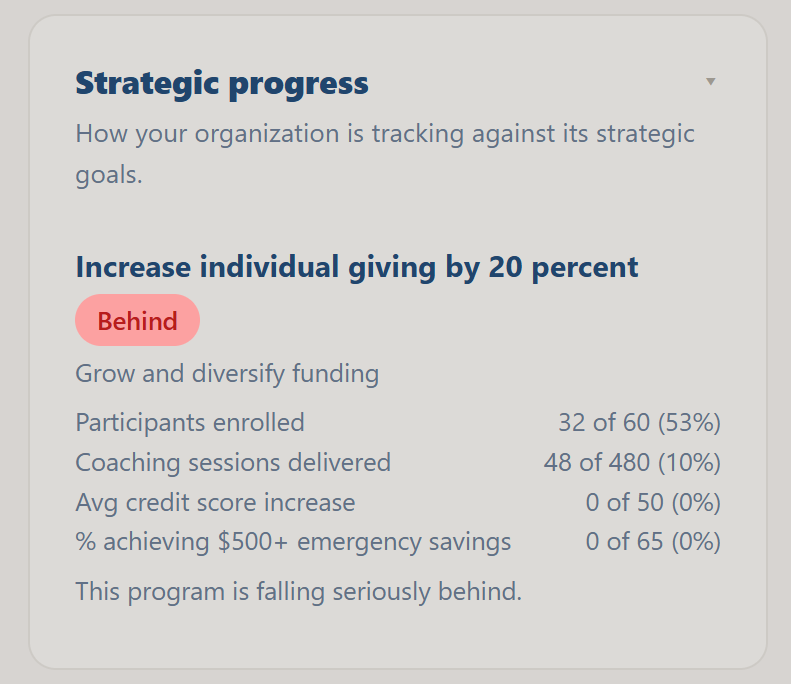
Why it matters: seeing the plan helps every member understand where the organization is headed and how it is doing.
Complete your self-review
If you are on your organization's staff, the My employment card includes a self-review panel. When your organization requests your self-review, a purple box appears: Your [year] self-review has been requested, with five questions about your year (your accomplishments, challenges, performance against your goals, proposed goals, and the support you need). Your answers autosave as drafts whenever you leave a field, so you can come back to it over several sittings. When you are ready, Submit (with a confirmation) locks your answers and sends them to your manager. Your past self-reviews are listed underneath.
Not sure how to put your year into words? Click Help me draft it (AI). Type rough notes about your year (bullet points are fine) and AI turns them into honest first-person draft answers, shown per question with a checkbox and an editable box for each, plus a choice to add below what you wrote, fill empty answers only, or replace. Nothing fills the form until you click Apply, and you review everything before submitting. The AI only shapes what you give it; it will not invent accomplishments.
Do this: When a self-review is requested, open the panel in My employment, answer the five questions (or start from Help me draft it (AI) with your rough notes), review your answers, and click Submit.
Why it matters: your self-review is your voice in your own performance review, and drafting it here, in your own words and on your own time, means your manager starts from what you actually did this year.
Submit a committee update when your chair asks
If you serve on a committee, your chair can ask everyone for input before a board report. When that happens, a committee update requested card appears on your portal home page with the chair's prompt and the due date. Type your update right there and submit it. You can come back and edit your answer any time until the chair closes the request, so it is fine to start rough and refine it later.
Do this: When a committee update is requested, open the card, read the prompt, type your update, and click Submit. Come back to edit it if anything changes before the due date.
Why it matters: your chair compiles everyone's input into the committee's board report, so a few minutes from you means the board hears about the work your committee actually did.
Manage your own profile and account
Further down your member page, three cards are yours to manage, and they are the same in every organization you belong to. My profile lets you set how your name should appear, your phone number, a preferred contact email, your preferred contact method, and which emails you want to receive (documents waiting for your signature, event notices, and organization announcements). These are your own preferences and do not change the records your organization keeps.
My organizations lists the organizations you belong to. If you need to be removed from one, use Ask to be removed and that organization will update their records. Sign-in & security shows your recent sign-ins and lets you sign out here or sign out of all devices at once. You sign in with a one-time email link, so there is no password to manage.
Do this: Open My profile, fill in your display name and preferred contact method, choose which emails you want, and click Save profile.
Why it matters: keeping your own details and email preferences current means your organization reaches you the way you prefer, without anyone having to update it for you.
That is your member page, top to bottom
You now know how to sign in, sign documents, check your assignments and events, complete training, read shared files, complete a self-review when one is requested, manage your own profile and sign-in, and, as a board member, vote and chat. Bookmark the portal and check it whenever your organization sends you a link.