Best viewed on two screens, or side by side
Put the tracker on one side and this walkthrough on the other so you can read a step and do it without flipping back and forth. Two monitors works best. On one screen, snap each window to half: click the tracker window and press ⊞ + ←, then this window and press ⊞ + → (on Windows). The tracker opens in a new tab when you click Open Strategic Progress above.
How this tour works
Strategic Progress works from your organization's real plan and measures, so there is no separate demo. This walkthrough opens the live tracker and explains each part. Anything you add is real, so use a real goal or a quick test one you can delete.
You need to be signed in to your All In One Nonprofit account. If the page asks you to sign in, sign in and come back. The metrics shown here come from your Impact and Outcomes app, and your board sees a read-only version of this picture in their member portal.
Think of this as the bridge between the plan and the board. Your strategic plan names the priorities; your impact app holds the numbers. This tracker ties them together so the board can see, all year, what is on pace and what is behind.
Get your bearings
When the tracker opens you see a Plan health summary (once you have goals), an Add a strategic goal form, a Board tools card, and Your strategic plan listing your goals grouped by priority.
Do this: Scan the page so you know where each piece lives. The form at the top is where you add and edit goals.
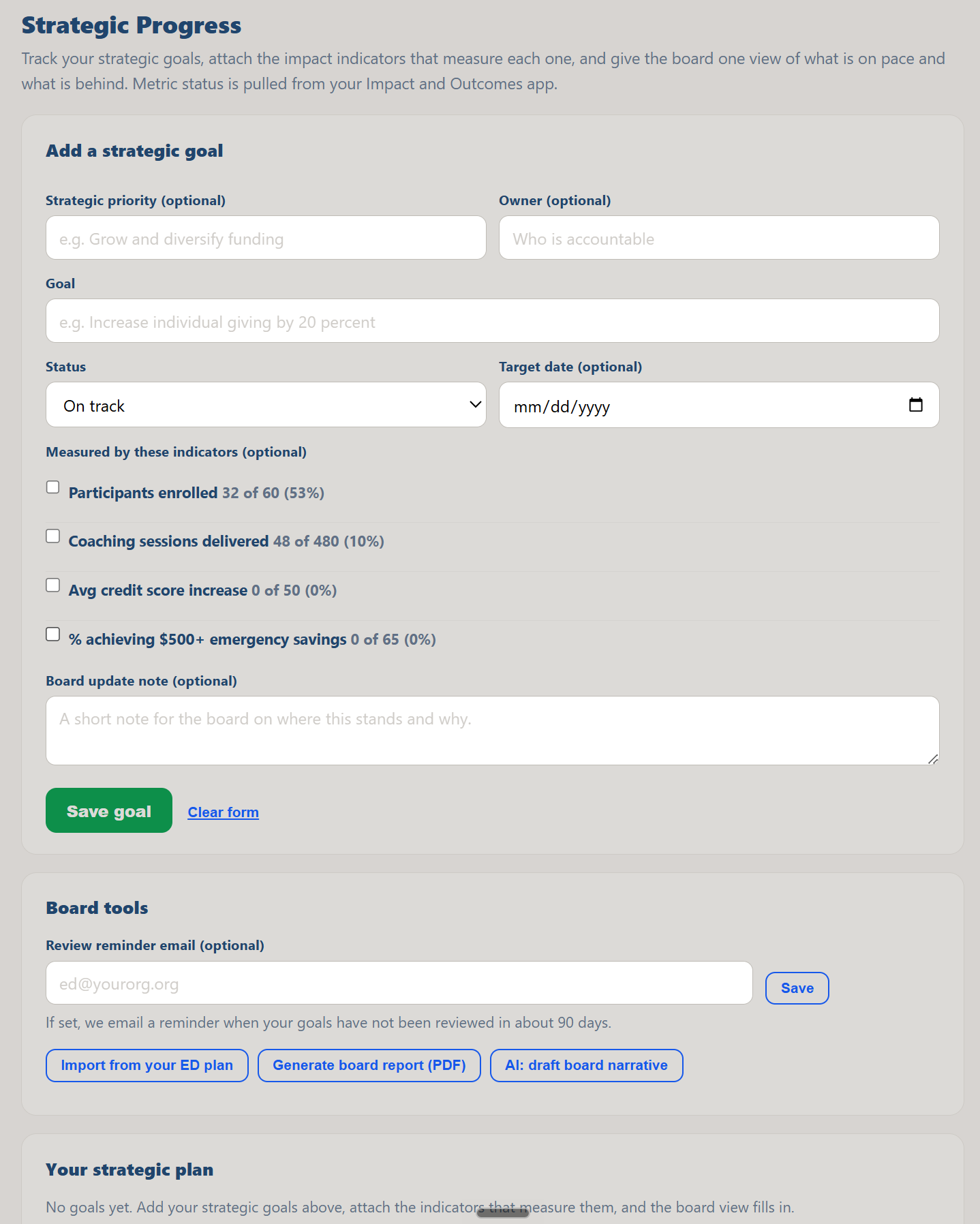
Why it matters: knowing the layout makes it quick to add a goal, post an update, or pull a report when the board asks.
Add a strategic goal
In Add a strategic goal, name a strategic priority (such as "Grow and diversify funding"), the goal itself (such as "Increase individual giving by 20 percent"), who owns it, a status, and an optional target date.
Do this: Enter a priority and a goal, set the Owner and a Status (On track, At risk, Behind, or Done), then save it. It appears under Your strategic plan, grouped by its priority.
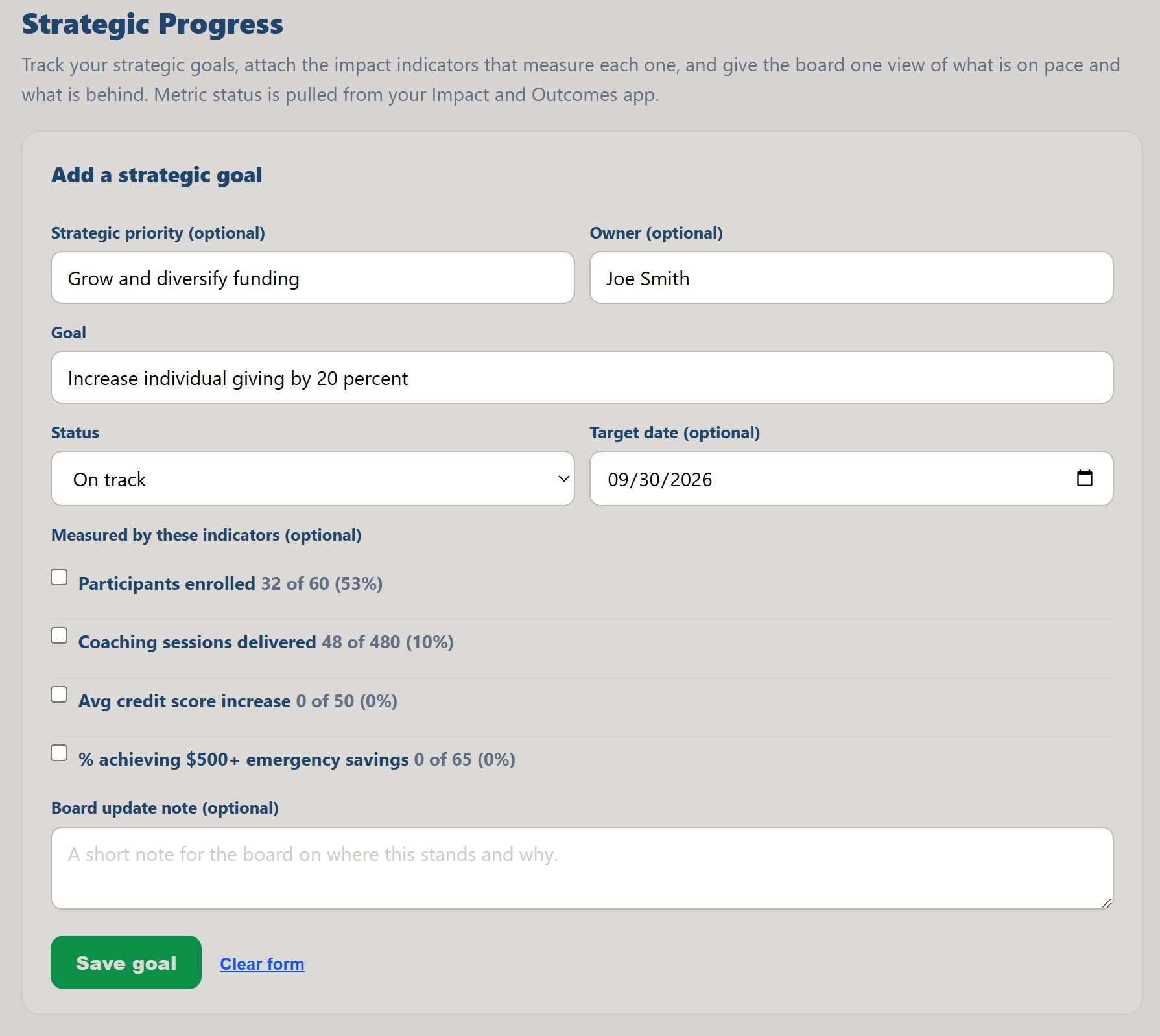
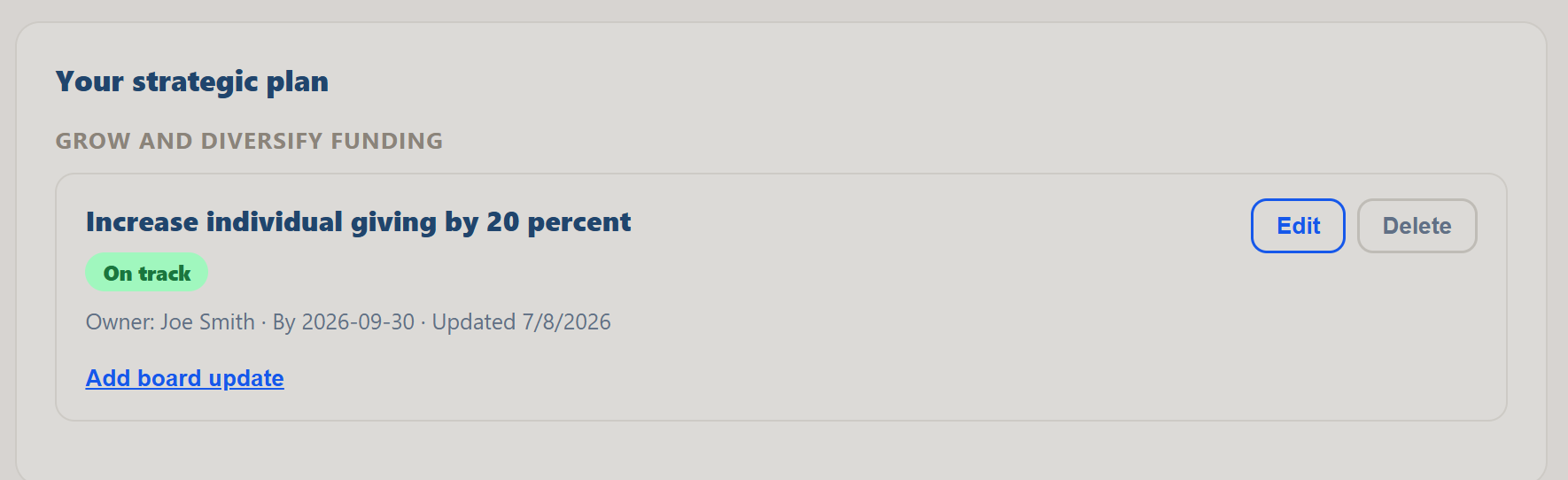
Why it matters: naming a clear owner and status for each goal is what turns a static plan into something you can actually manage.
Attach the indicators that measure it
Under Measured by these indicators, you can attach the impact indicators that prove this goal is moving. These come straight from your Impact and Outcomes app, with their current value against target. The tracker then suggests a status from the numbers, while you keep the final say.
Do this: While adding or editing a goal, check one or more indicators that measure it. After saving, notice if the goal shows a "metrics suggest" hint when the numbers disagree with the status you set.
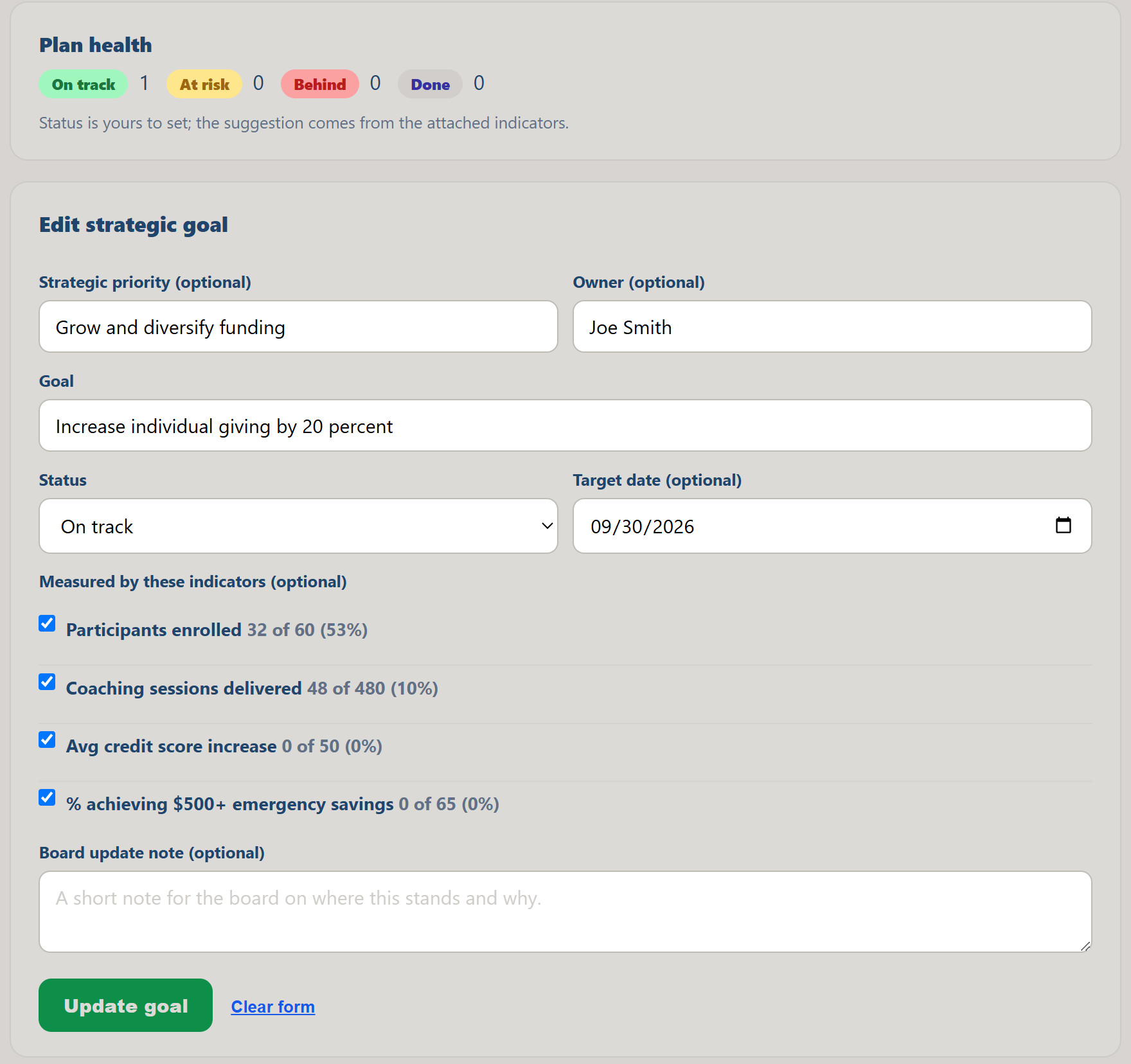
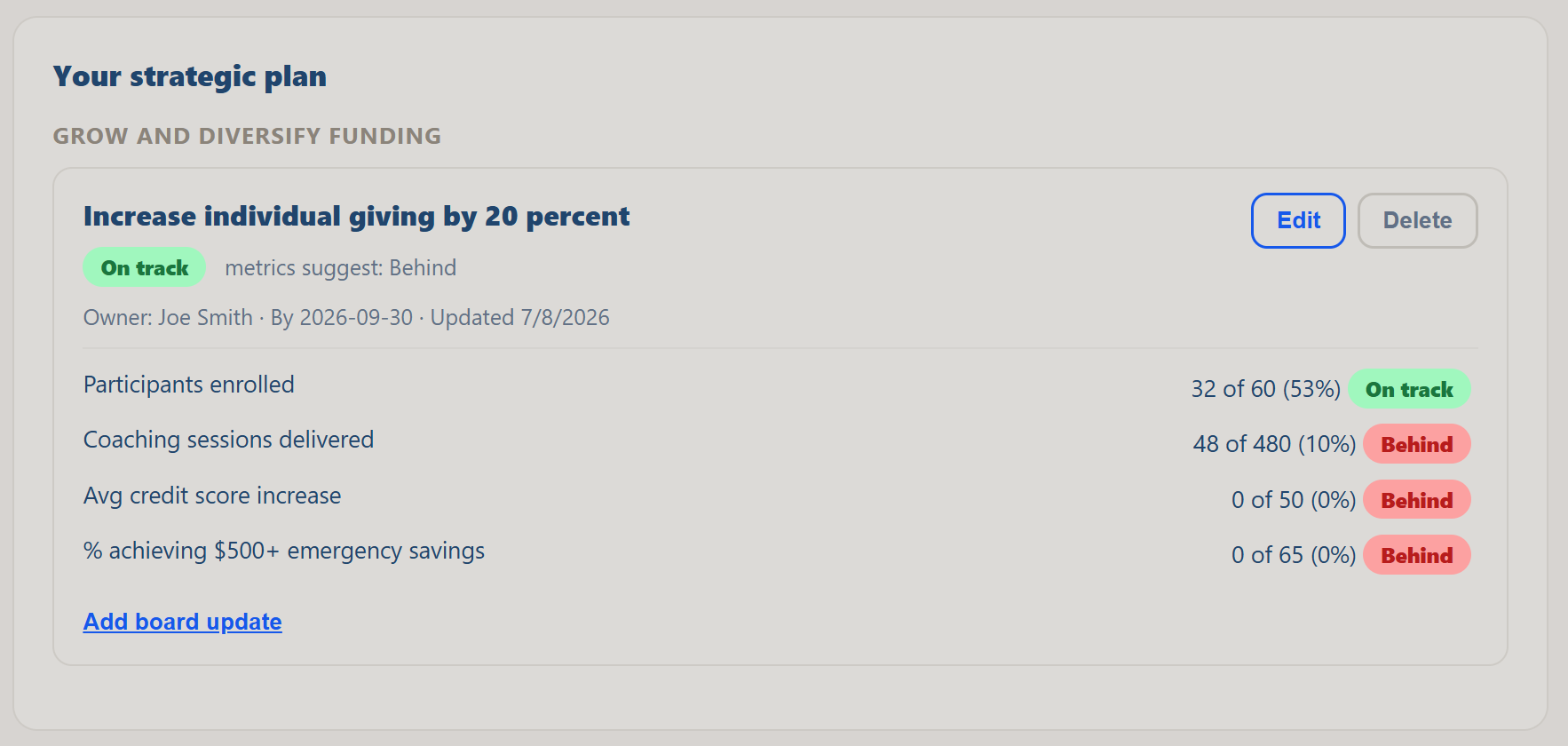
Why it matters: tying a goal to real measures keeps the board conversation honest, grounded in data rather than gut feel.
Read the plan health summary
Once you have goals, the Plan health card at the top tallies how many are on track, at risk, behind, and done, in one glance.
Do this: Look at Plan health and see where your plan stands overall. This is the single number that frames the whole board discussion.
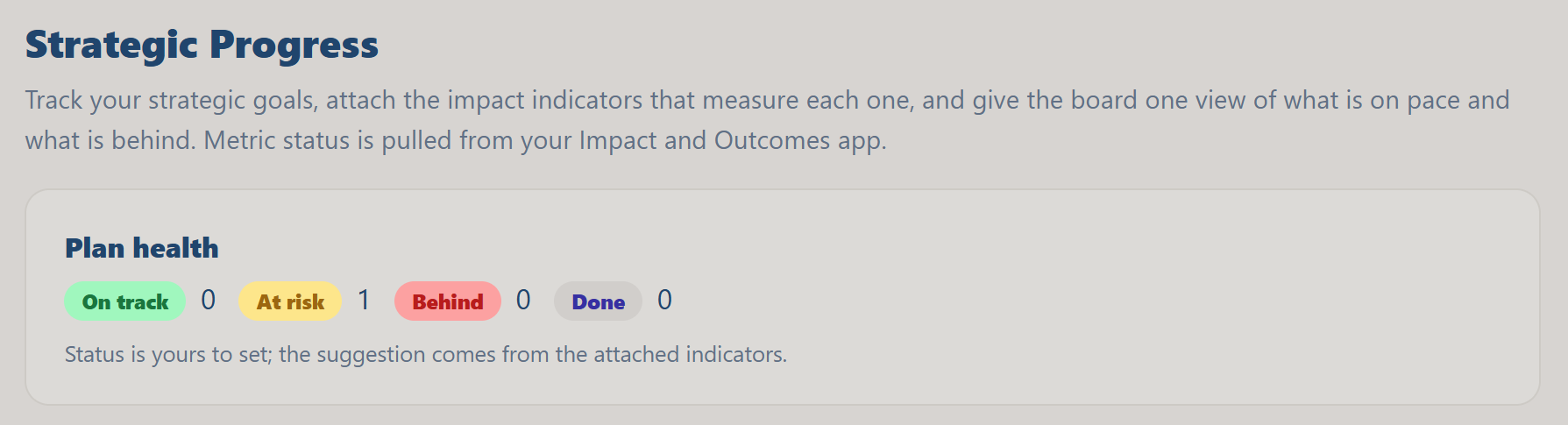
Why it matters: a one-line health read tells leadership instantly whether the plan is on course or needs attention.
Post board updates over time
Each goal can carry a running history of board updates. When something changes, add a dated note and optionally a new status, and it is recorded under that goal so the board can see how it has moved.
Do this: On a goal, click Add board update, choose a status or keep the current one, write a short note, and post it. Watch it appear in the goal's update history.
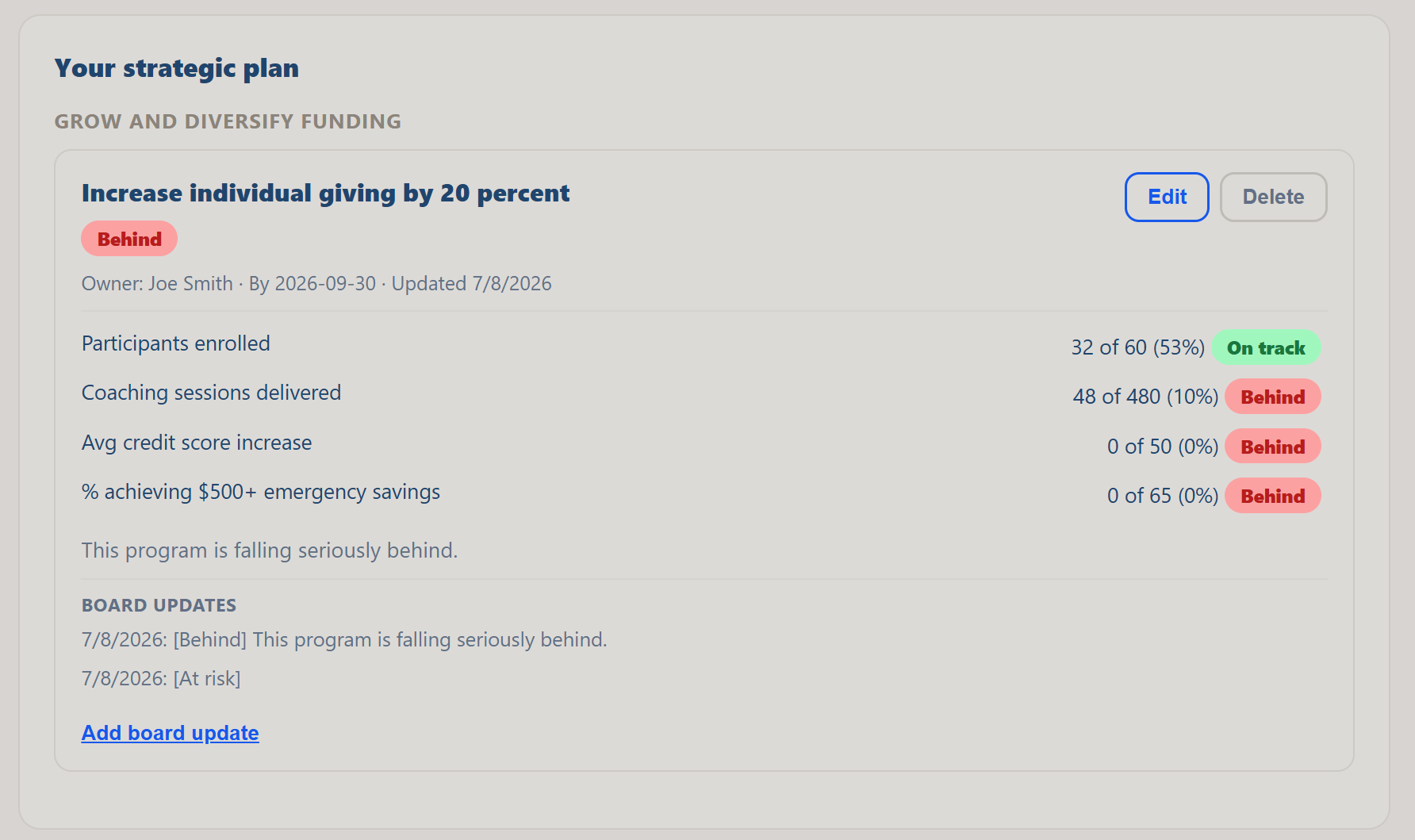
Why it matters: a trail of updates shows the board not just where a goal is, but how it got there, which builds trust in the reporting.
Import from your ED strategic plan
If you built a strategic plan in the Executive Director app, the Import from your ED plan button pulls that text in so you can copy priorities and goals into the tracker instead of retyping them.
Do this: In Board tools, click Import from your ED plan. If a plan exists, copy the relevant priorities and goals into the form above.
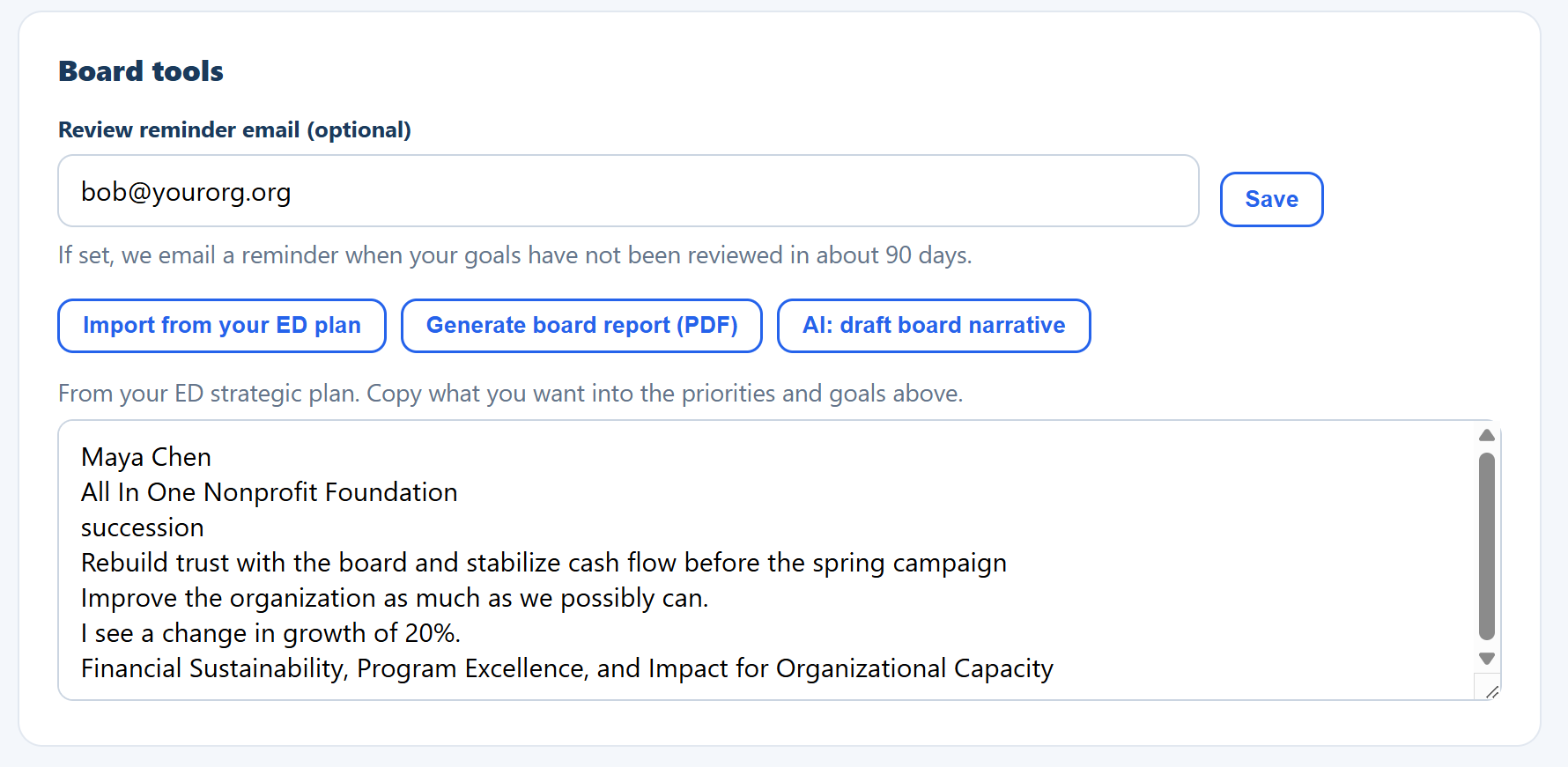
Why it matters: your plan should not live in two disconnected places. Importing keeps the tracker aligned with the plan you already wrote.
Generate a board report
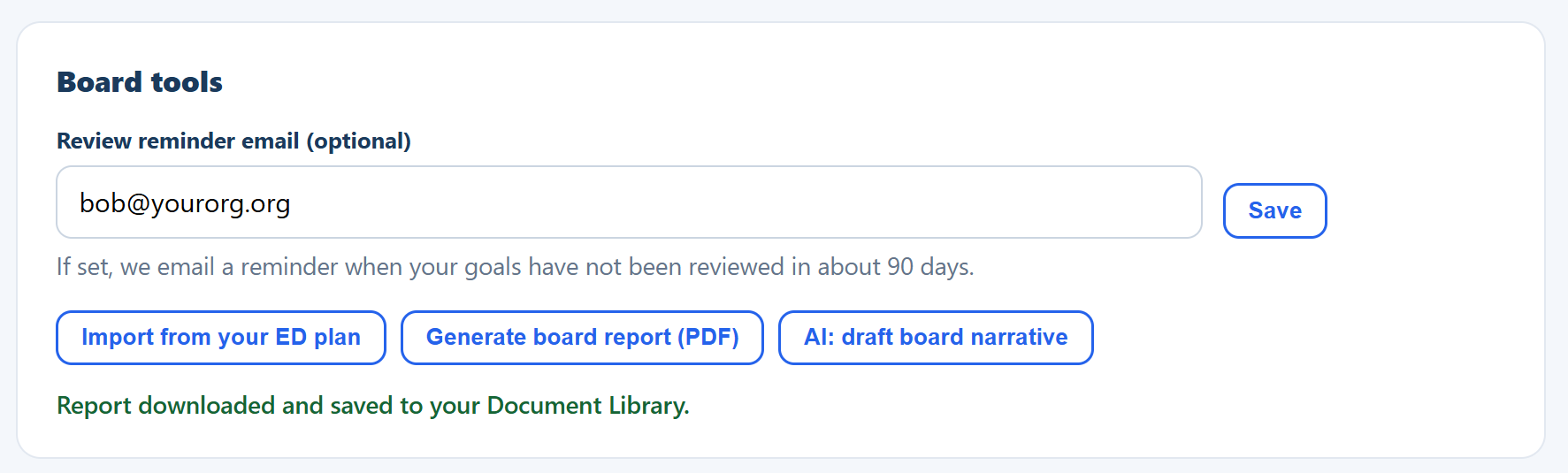
The Generate board report (PDF) button builds a clean strategic-progress report: plan health plus every goal, its status, its measures, and your notes. It downloads to you and files a copy into your Document Library automatically.
Do this: Click Generate board report (PDF) and open the file. Notice the confirmation that a copy was saved to your Document Library.
Why it matters: a board-ready report in one click means the strategy update for your next meeting is done before you sit down to prepare it.
Let AI draft the board narrative
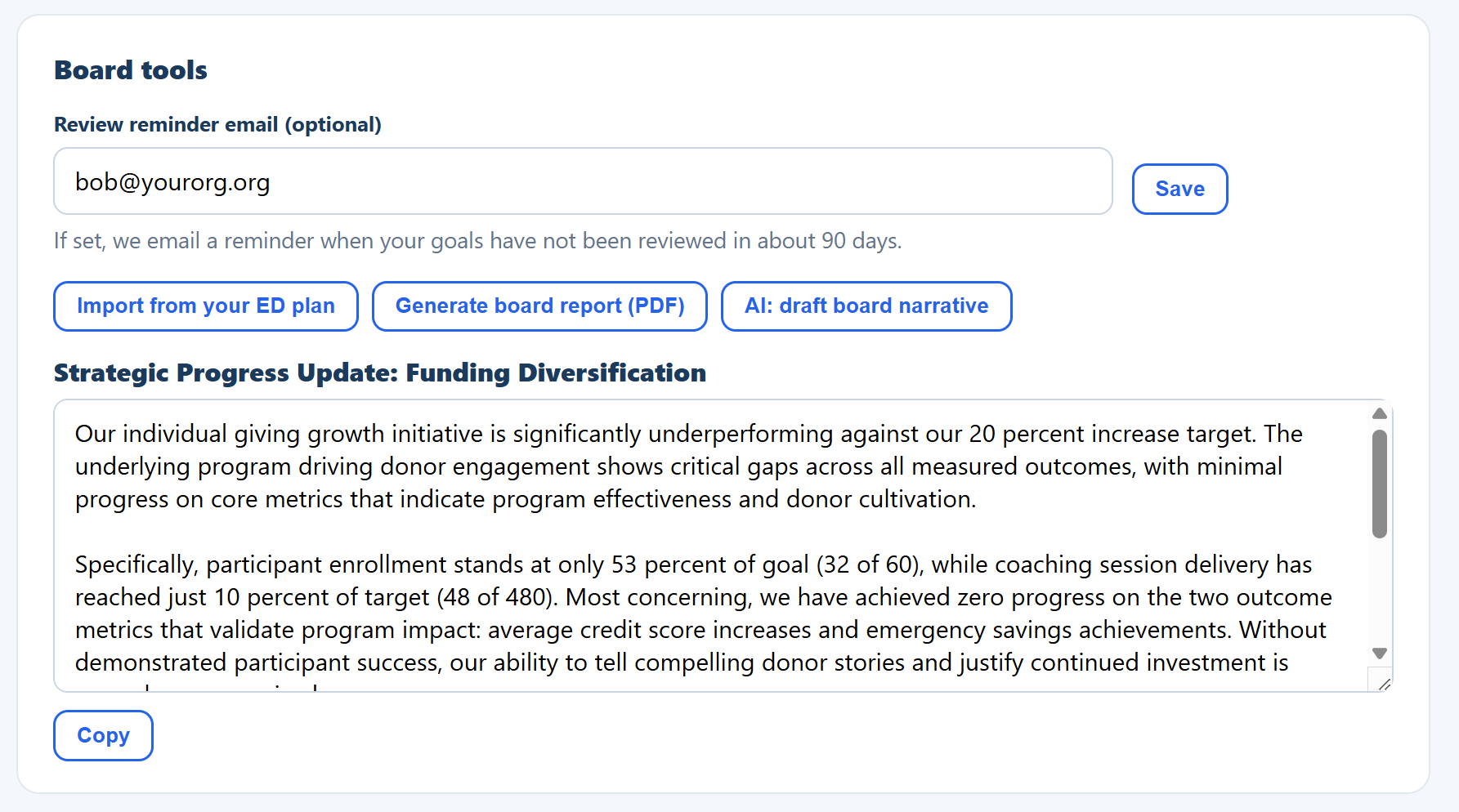
The AI: draft board narrative button writes a short, plain-language summary of where the plan stands, drawn from your goals, statuses, and measures. You can edit it and copy it into your board packet.
Do this: Click AI: draft board narrative, read the draft, edit anything you want, and copy it.
Why it matters: turning a list of goals into a readable narrative is the part that usually eats your prep time, and here it is a quick review.
Set a review reminder
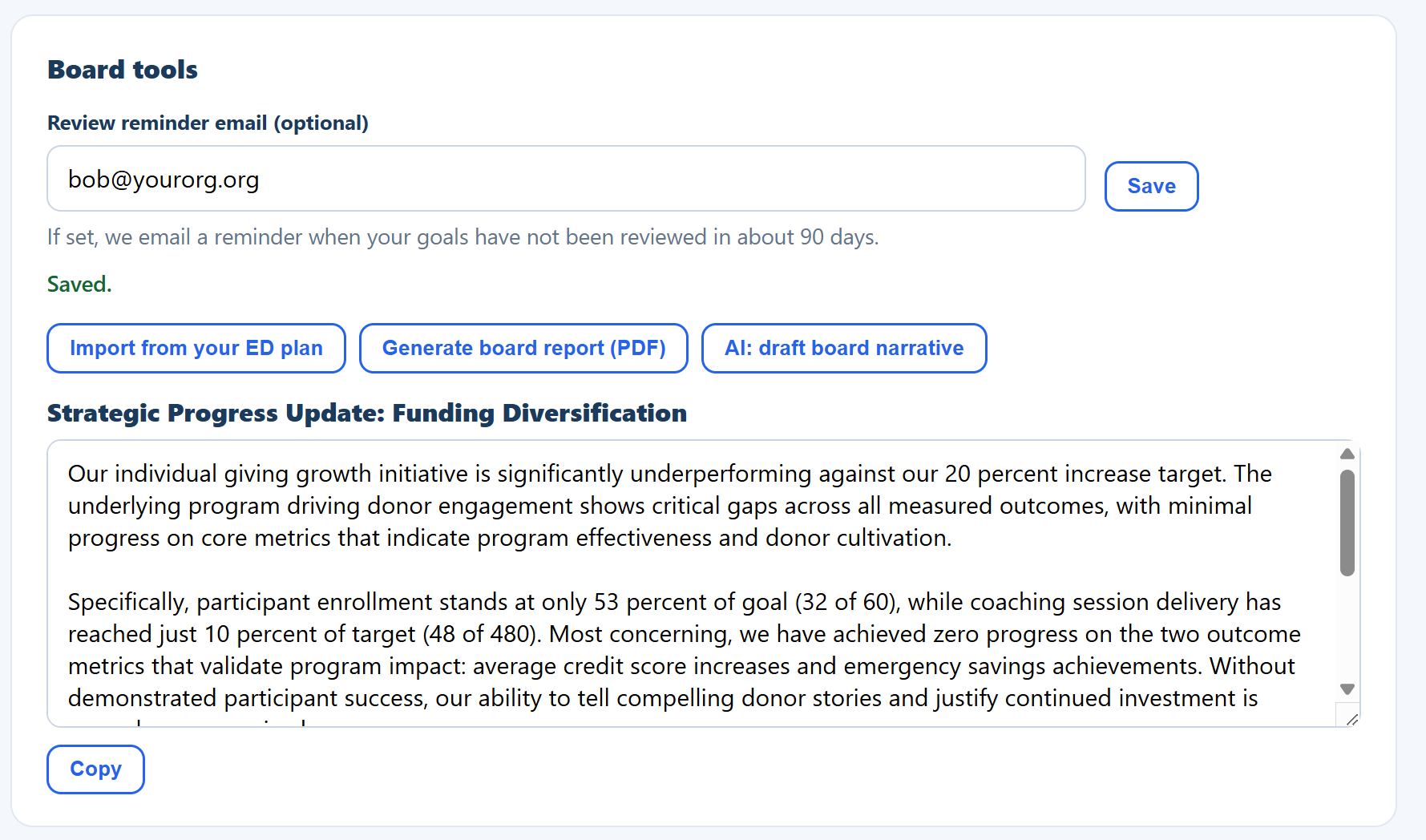
In Board tools you can enter a review reminder email. If your goals have not been reviewed in about 90 days, the app emails a nudge so the plan never goes stale between meetings.
Do this: Enter an email such as your executive director's and click Save.
Why it matters: a plan only delivers if someone keeps looking at it. A gentle reminder keeps the review on the calendar.
What the board sees
Your directors do not need this admin page. The same picture, goals, status, and measures, appears read-only on their member page, so every board member can follow the plan between meetings.
Do this: Open the member portal walkthrough to see the read-only Strategic progress card from a board member's view.
Why it matters: when the whole board can see the plan all year, accountability stops being a once-a-year event.
That is your plan, made visible
You now know how to set priorities and goals, attach the measures that prove progress, post updates, and produce a board-ready report and narrative, all in one place your board can follow. Add your real goals whenever you are ready.