Best viewed on two screens, or side by side
Put the demo on one side and this walkthrough on the other so you can read a step and do it without flipping back and forth. Two monitors works best. On one screen, snap each window to half: click the demo window and press ⊞ + ←, then this window and press ⊞ + → (on Windows). The demo opens in a new tab when you click Launch the demo above.
How the demo works
The demo is a fully working copy of the Contact Manager loaded with a sample food rescue organization: partner agencies, donors, volunteers, a few logged calls, an overdue follow-up, and a couple of tasks. There is no sign-in and nothing you do is saved to a real account, so click freely. You will see a red DEMO MODE bar across the top with a Reset button if you ever want a clean slate. If you would rather be shown around first, Learn and help in the sidebar has Take the tour, a twelve-step guided pass over the screen.
In your real account the same screens read your live contacts, donors, and volunteers, and everything you log is shared with your whole team.
Your task: pick the relationships back up. Somebody left, and with them went the memory of who was called, what was promised, and who is waiting. We are going to make that knowledge belong to the organization instead of to a person.
Get your bearings on All people
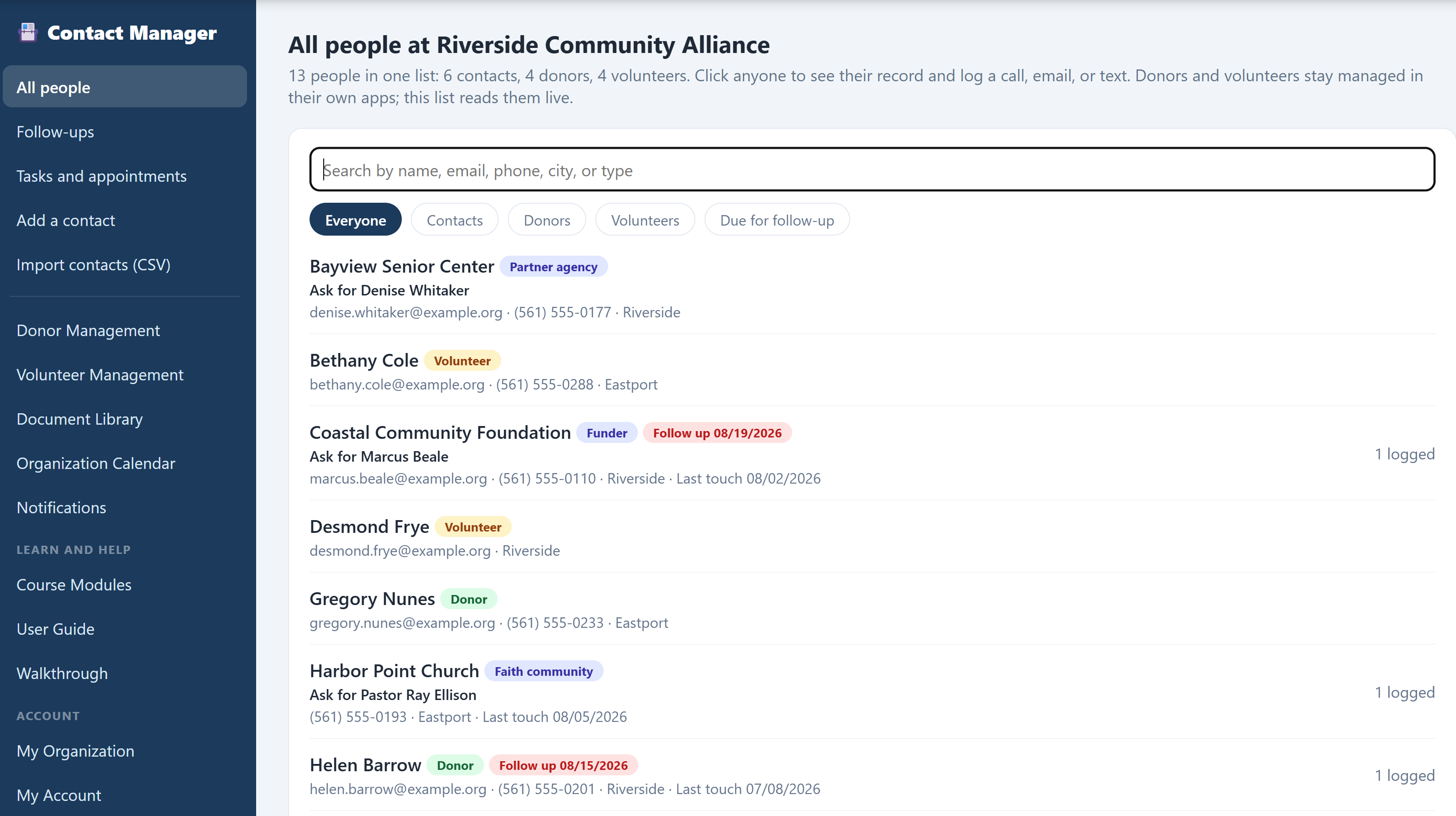
The demo opens on All people. Read the line under the heading first: it tells you how many people are in the list and how that splits between contacts, donors, and volunteers. This is one list assembled from three different apps, live, every time you open it.
The left sidebar holds All people, Follow-ups, Tasks and appointments, Add a contact, and Import contacts, then the usual platform links and a Learn and help group.
Do this: Look at the counts under the heading, then scroll the list and notice the colored badges on each row. Some people carry two.
Why it matters: nothing was merged or copied to build this. Your donors are still in Donor Management and your volunteers are still in Volunteer Management. This is the view none of them could give you on their own.
Find somebody without knowing which app they are in
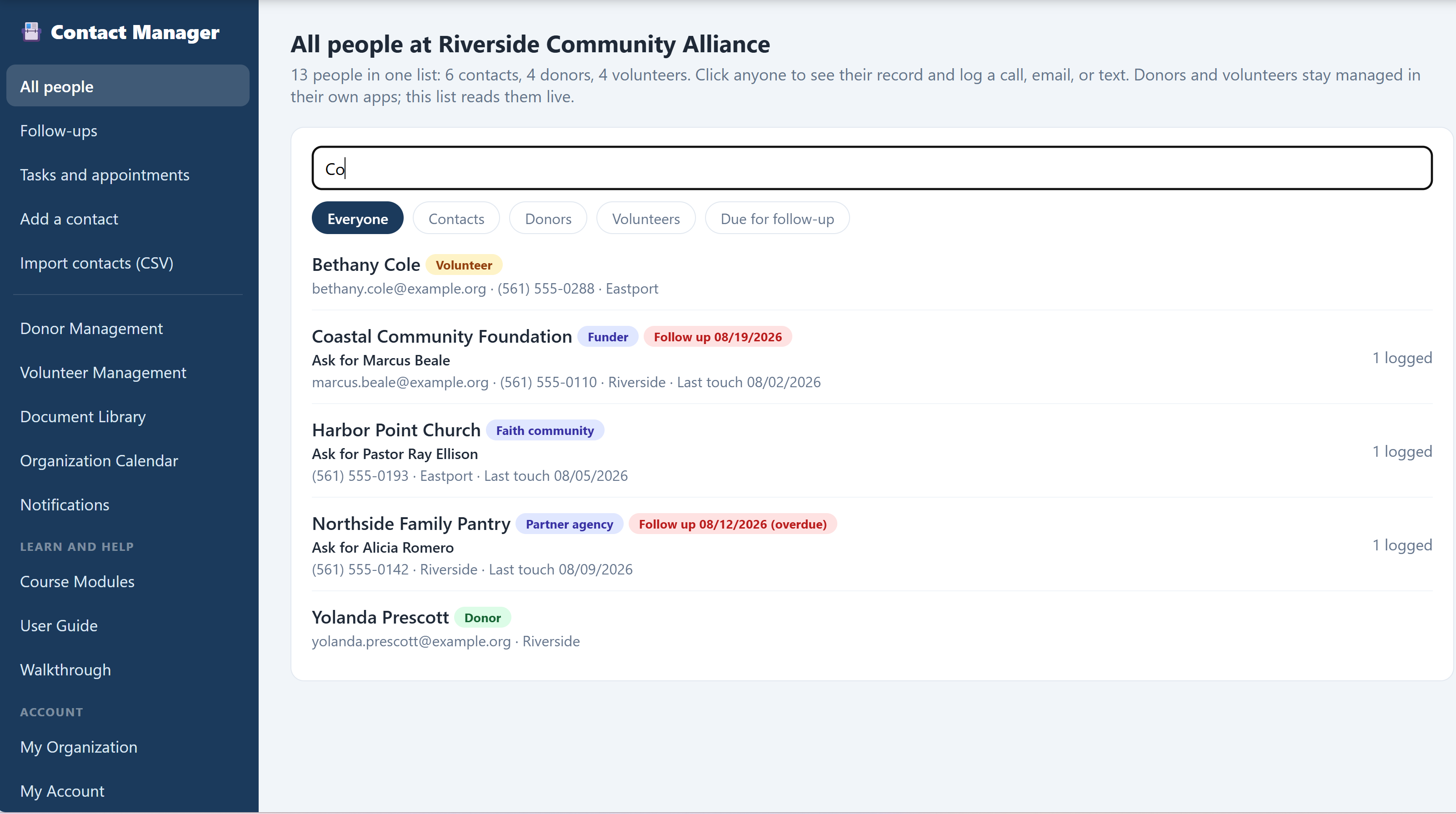
The search box matches name, contact person, email, phone, city, type, and tags, so you can find a row by whatever detail you actually remember. The chips under it narrow the list to Everyone, Contacts, Donors, Volunteers, or Due for follow-up.
Do this: Type a partial name or a city into the search box and watch the list narrow. Then clear it and click the Donors chip, then Volunteers. Look for a row that carries both badges.
Why it matters: the question "have we ever talked to these people" used to require opening three apps and hoping. Here it is one box.
Open a record and log a call
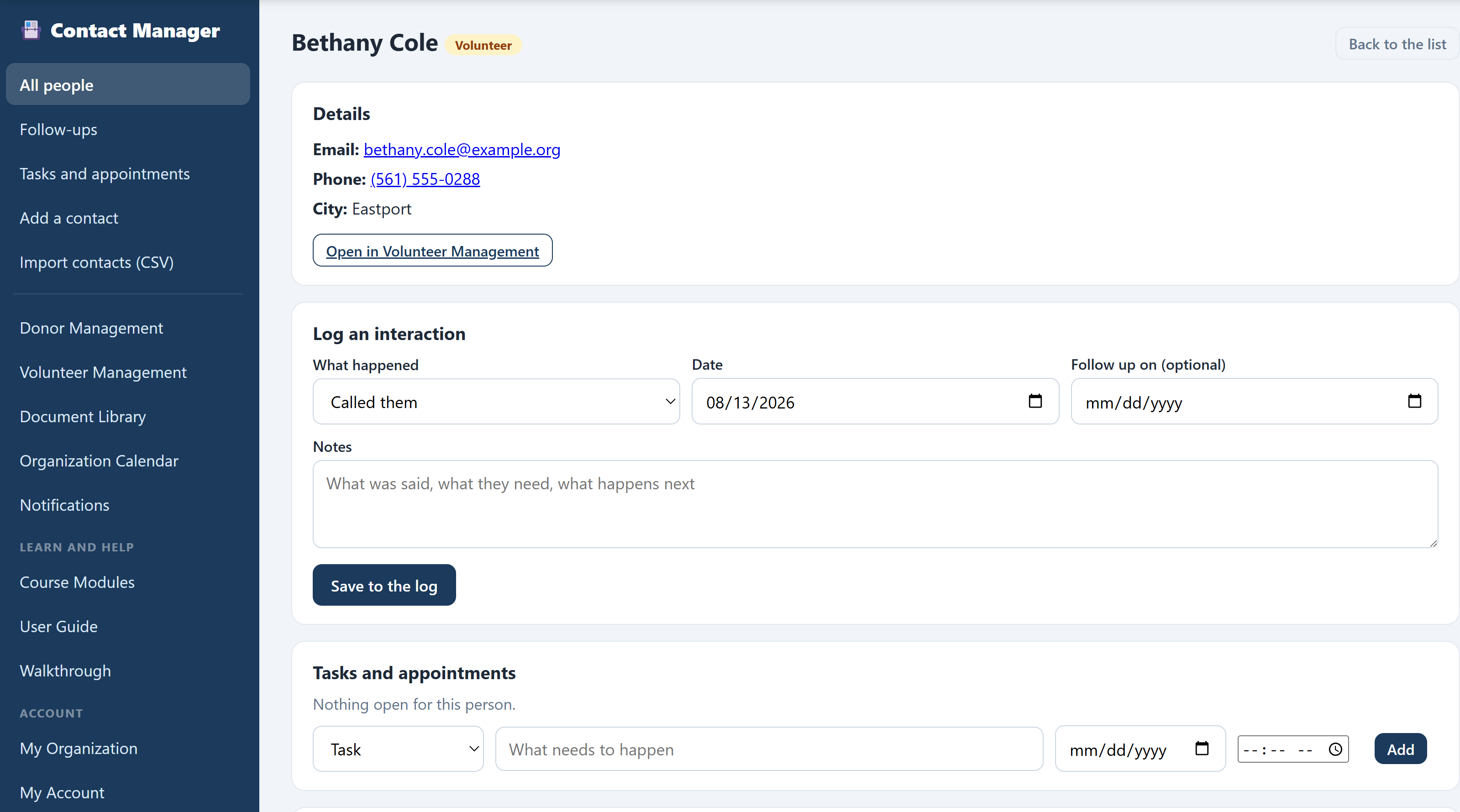
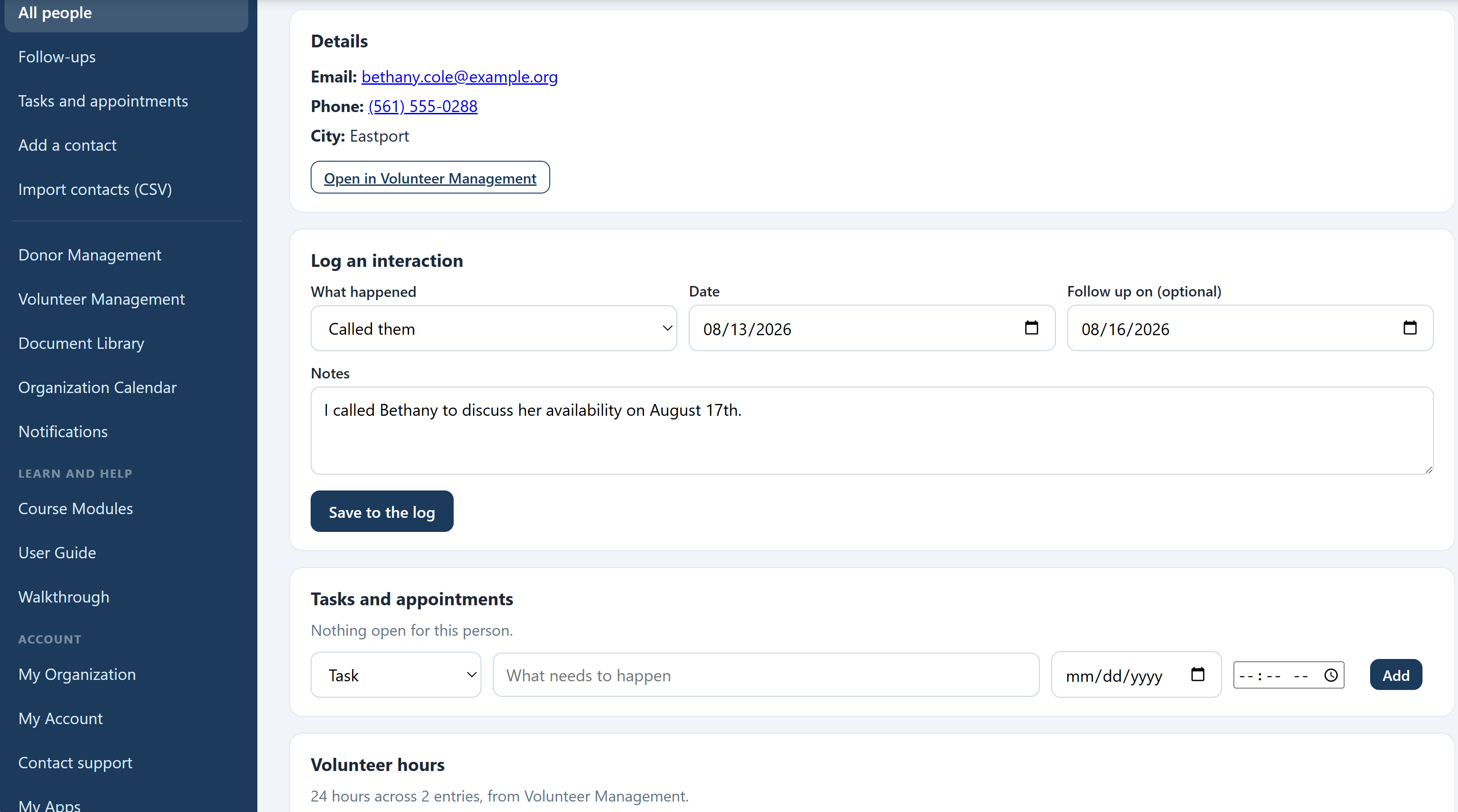
Click any row to open that person's record. You get their details at the top, a Log an interaction card, their tasks and appointments, any giving or volunteer history, and the full timeline underneath.
Do this: Open somebody, leave What happened on Called them, leave the date on today, type a real sentence in Notes such as "Asked about Thursday pickups, they can take an extra pallet," and click Save to the log. Watch it appear in the timeline below.
Why it matters: this is a ten-second habit, and it is the whole product. Everything else on this page exists to make that ten seconds worth spending.
Set a follow-up, then let it come find you
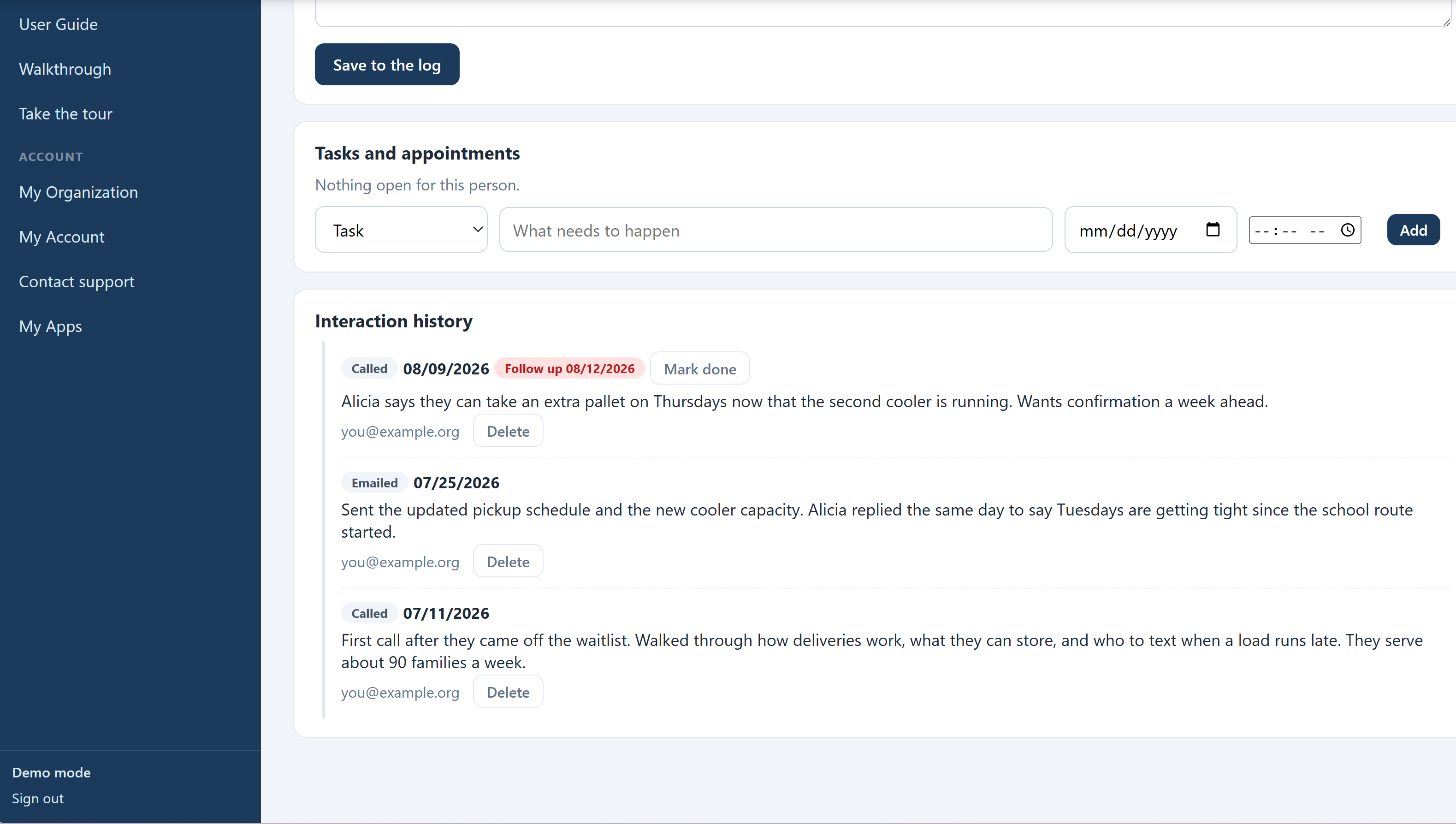
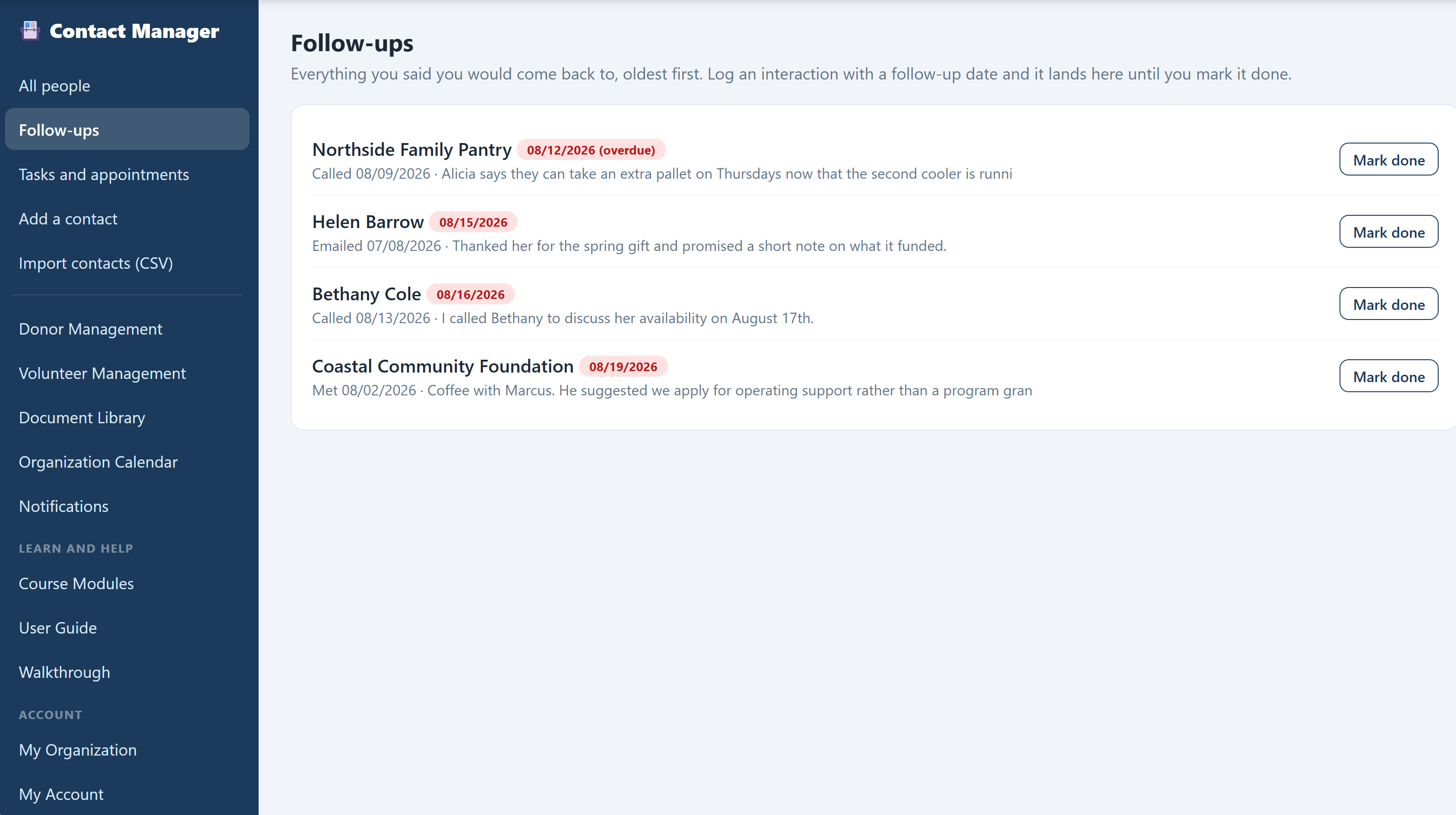
The Follow up on date on the log form is the most valuable field on the screen. Anything you date lands on the Follow-ups screen and stays there until somebody marks it done.
Do this: Log another interaction, this time setting Follow up on to a date next week. Then click Follow-ups in the sidebar and find it. Notice the sample data already has an overdue one waiting, flagged in red.
Why it matters: a contact list tells you who exists. A contact manager tells you who is waiting on you. That difference is the reason people keep using it after week three.
Add a task or book an appointment
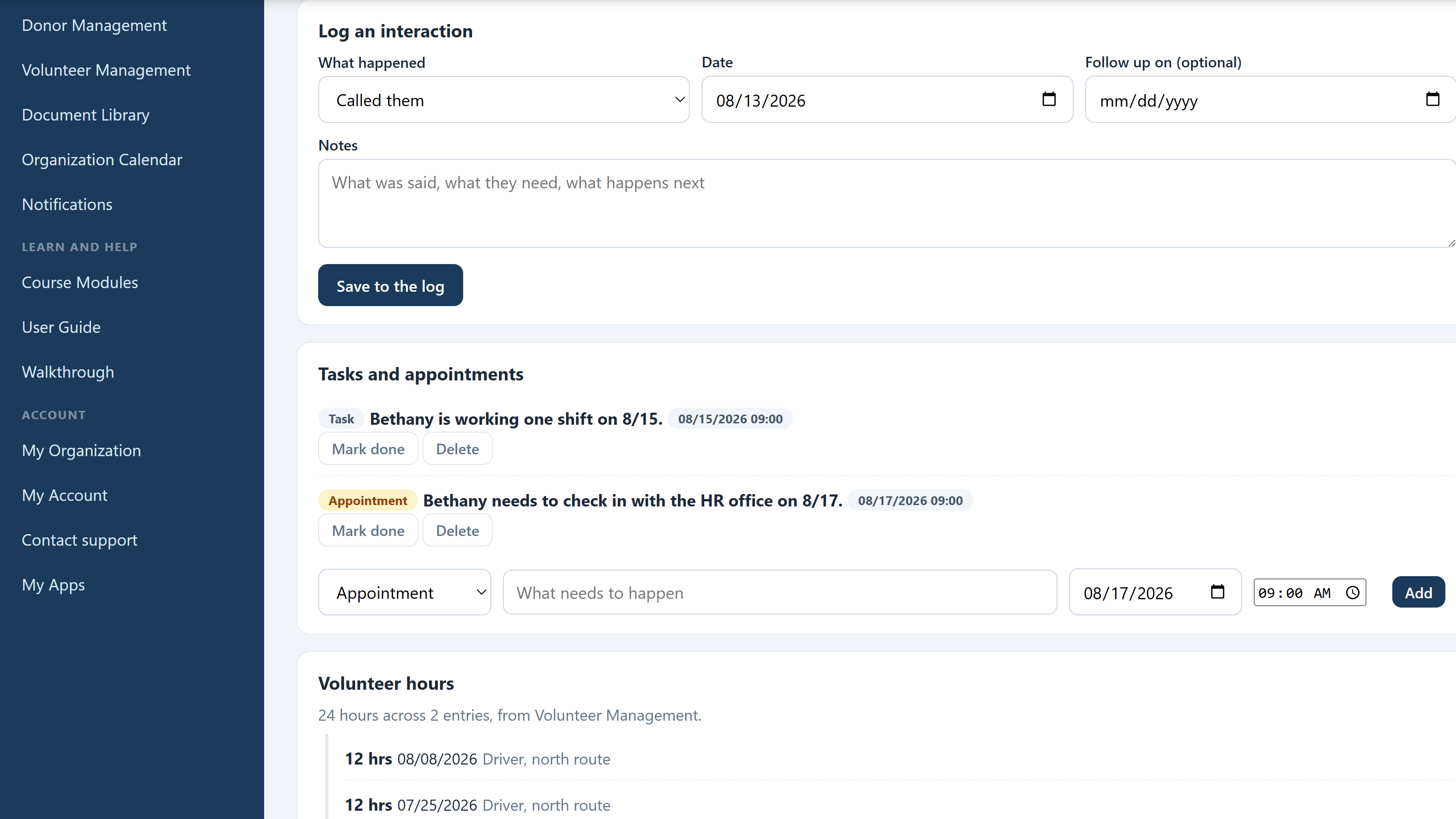
A follow-up hangs off something that already happened. A task or an appointment is something you are planning. Tasks have an optional due date, appointments have a date and a time, and either can be attached to a person or stand alone.
Enter the time the way you think about it, in your own zone. When the appointment is sent, the calendar invite carries the time zone along with the hour, so somebody in a different state sees the correct local time on their own calendar rather than the same numbers on a different clock. The confirmation email spells the zone out as well.
Do this: On a person's record, use the quick-add row in the Tasks and appointments card to add one, then click Tasks and appointments in the sidebar to see everything open across the whole organization, soonest first.
Why it matters: the promise and the plan sit next to the person they are about, so preparing for a call takes one screen instead of a hunt through a calendar and an inbox.
See giving and volunteer hours without leaving the page
When the person you opened is also a donor or a volunteer, extra cards appear on their record. Giving shows their gift count, lifetime total, and recent gifts. Volunteer hours shows total hours and recent entries. Both are read-only summaries; the full history stays in the app that owns it.
Do this: Click the Donors chip, open somebody, and scroll to the Giving card. Then find a volunteer and look at their hours.
Why it matters: knowing the person you are about to call has given four times and worked eighty hours changes the call. That context used to live two apps away.
Draft the next message with AI
Knowing what to say next is the part that stalls. On any person's record, the Draft a message with AI card writes the follow-up for you from what is already logged: the calls, the emails, the open follow-ups and tasks, and any giving or volunteer hours on the record. Pick the channel (email, a phone call plan, or a text) and the purpose (follow up, catch up after a gap, say thank you, make an ask, or confirm an arrangement), and it drafts something you can send.
Do this: Open somebody with a few entries in their history, scroll to Draft a message with AI, choose Email and Follow up, and run it. Then read the draft against the history above it and see where it got its facts.
Everything it writes is grounded in that log. It will not invent a conversation, a promise, a meeting, a gift, or an amount that is not there, and it will not thank anyone for something the record does not show. Where a detail is missing that only you can supply, it leaves a [bracketed] placeholder for you to fill in rather than guessing.
Also try: AI Automations in the sidebar runs the same drafter without opening a record first, and every draft can be copied, downloaded as Word or plain text, printed, or sent by email straight from the panel.
Why it matters: the blank page is what turns a five-minute follow-up into a task that sits for three weeks. A grounded first draft is not the finished message, but it is the hard part already done.
Add a contact, and tag it
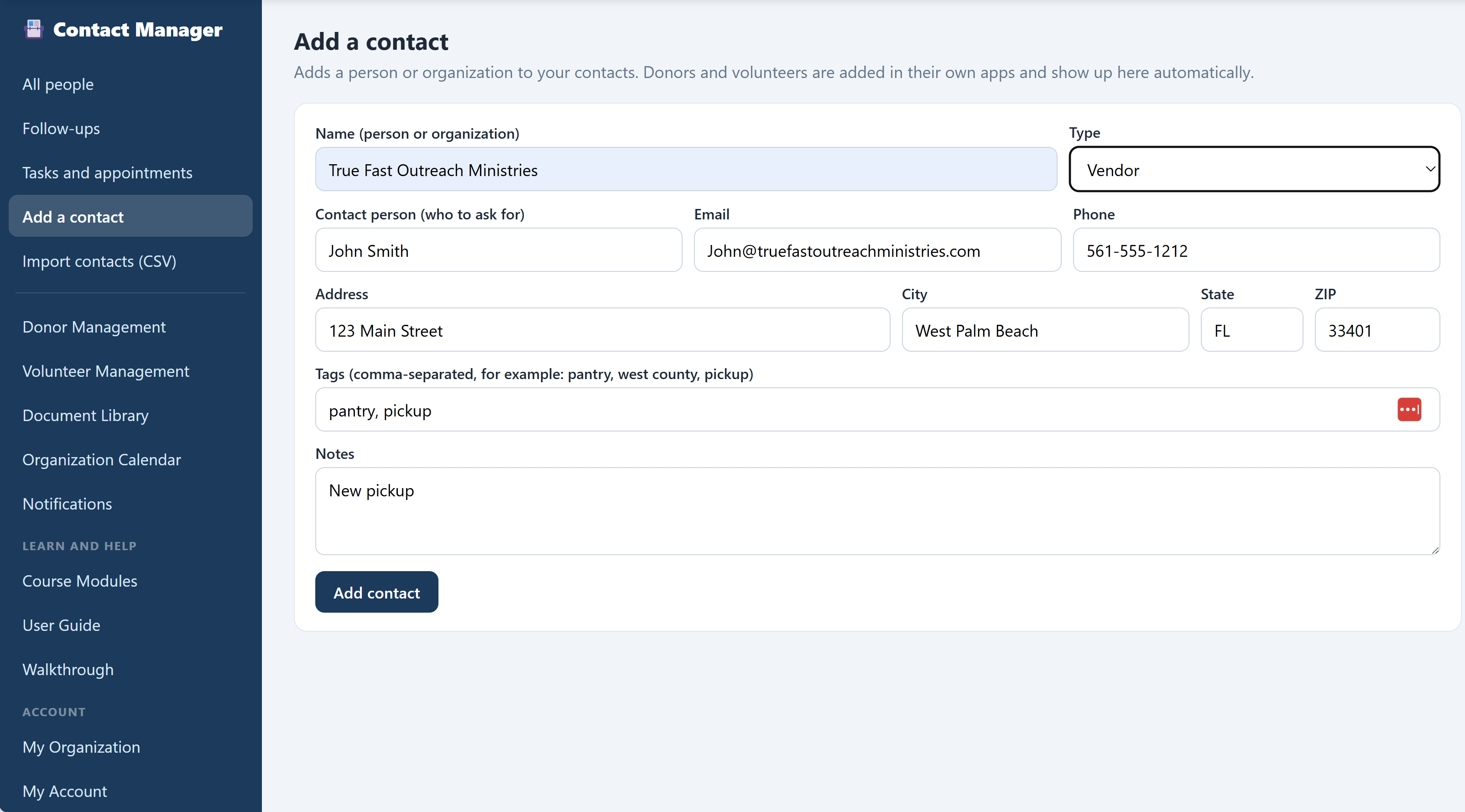
Click Add a contact. This form is for everybody who is not a donor or a volunteer: partner agencies, funders, vendors, schools, faith communities, media, and individuals. Only the name is required, and email is optional, because plenty of real partner organizations are reachable only by phone.
Do this: Add a contact with a name, pick a Type, fill in Contact person with who to ask for, and put two words in Tags such as "pantry, west county". Save it, then search for one of those tags and watch it come back.
Why it matters: the Type dropdown covers the common cases and tags cover everything else, so you are never stuck because your grouping was not on somebody else's list.
Bring in the spreadsheet you already have
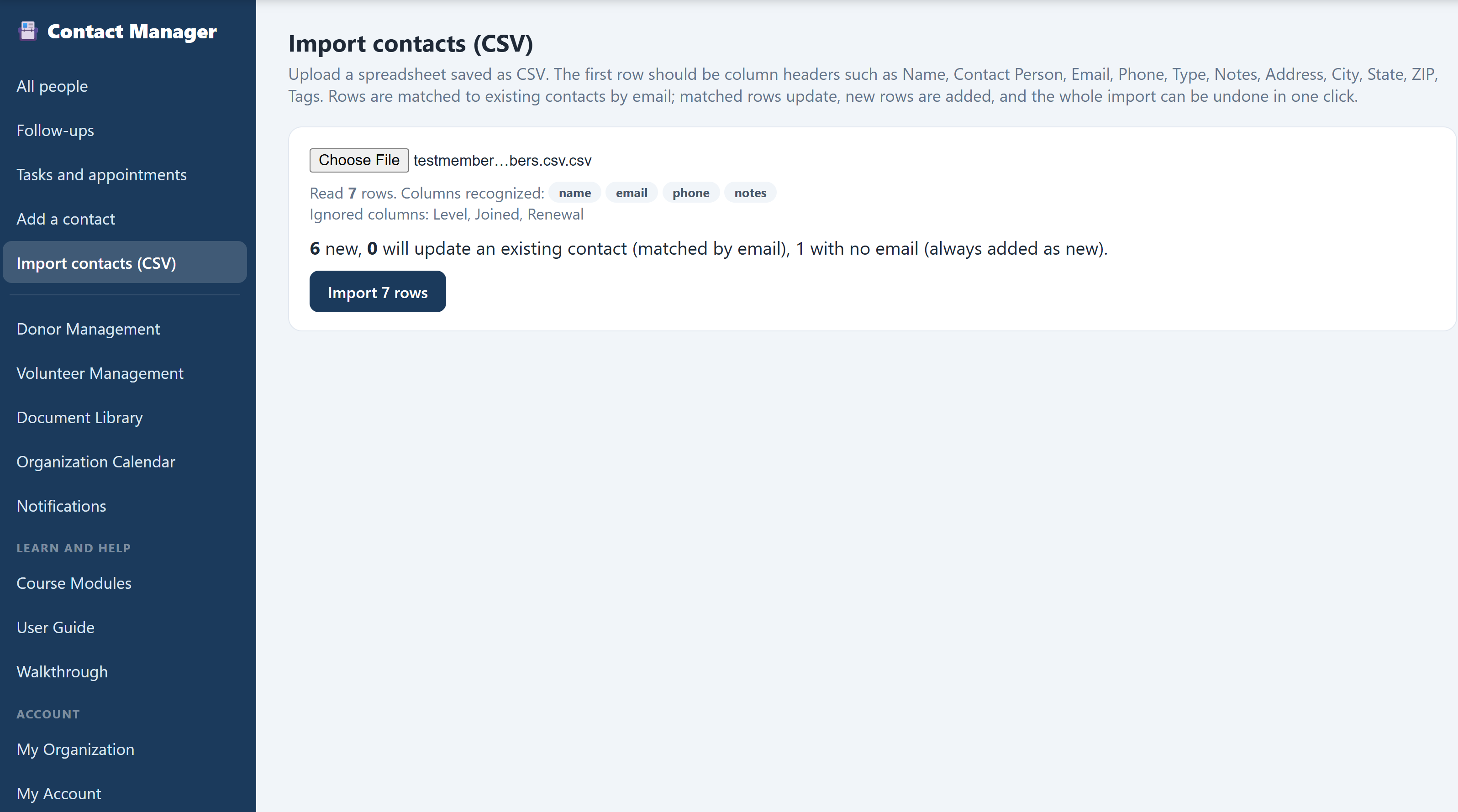
Click Import contacts (CSV). Save your spreadsheet as CSV, make the first row headers, and upload. Column names are matched for you, unrecognized columns are listed rather than silently dropped, and you get a preview of how many rows are new and how many will update an existing contact before anything is written.
Do this: Open the import screen and read the instructions, including the line about matching by email and the one-click undo.
Why it matters: the reason organizations stay on a spreadsheet is that moving off one feels risky. A preview before the write and an undo after it removes the risk.
Keep learning in Course Modules
In the sidebar, open Learn and help and click Course Modules. A short course covers running relationships properly: why one list beats three, what makes a log note worth reading later, how follow-ups change behavior, using types and tags to segment, and turning a year of logged history into an ask.
Do this: Open Course Modules and read one lesson. Progress is saved as you go, and each module ends with a short quiz.
Take the tour sits in the same Learn and help group and is the faster way in. It walks the screen itself in twelve short steps, pointing at each part of the Contact Manager in turn and explaining what it is for. It remembers where you stopped, so you can leave partway through and pick it up later.
Why it matters: the software is the easy half. Knowing what to write down, and when to come back, is the half that decides whether the relationship holds.
Keep every document in your Document Library
Every All In One Nonprofit app shares one secure, organization-wide Document Library. The Document Library link sits in the sidebar and opens the Library in a new tab, where your whole team can find any file you have saved.
Do this: Find Document Library in the sidebar. A signed agreement with a partner agency, a memorandum of understanding, or a funder's award letter belongs there, and the Library keeps every version.
Why it matters: one shared home for your documents means nothing lives only on one person's computer, and the current version is always easy to find.
Get help anytime with Contact support
If you ever get stuck, the Contact support link in the sidebar opens a help request tied to your account. You describe what you need, send it, and our team replies by email, and you can follow the whole conversation from the support page.
Do this: Click Contact support in the sidebar to see the request form. Signed in to your real account, you can send a message and then track replies and status right there.
Why it matters: real help from real people is part of the product, so you are never left staring at a blank screen on your own.
The relationships belong to the organization now
You found somebody across three apps, logged what happened, set a promise that came back to find you, and booked the next step, using the same tools you would use with your real contacts. Explore any other part of the demo, or reset it and try it your own way.